ZO-MixPersonal monitor mixing from a phone, for DiGiCo consoles
Your mix, on your phone. No more waving at the engineer in the middle of a song. I built ZO-Mix for DiGiCo Quantum and SD: one app on the Mac, and the musicians just scan a QR code.
Founder price for the first 50 customers, until 31 March 2027: ₪149 a year. After that the price is ₪299 a year. Founders renew at the same price for 3 years.
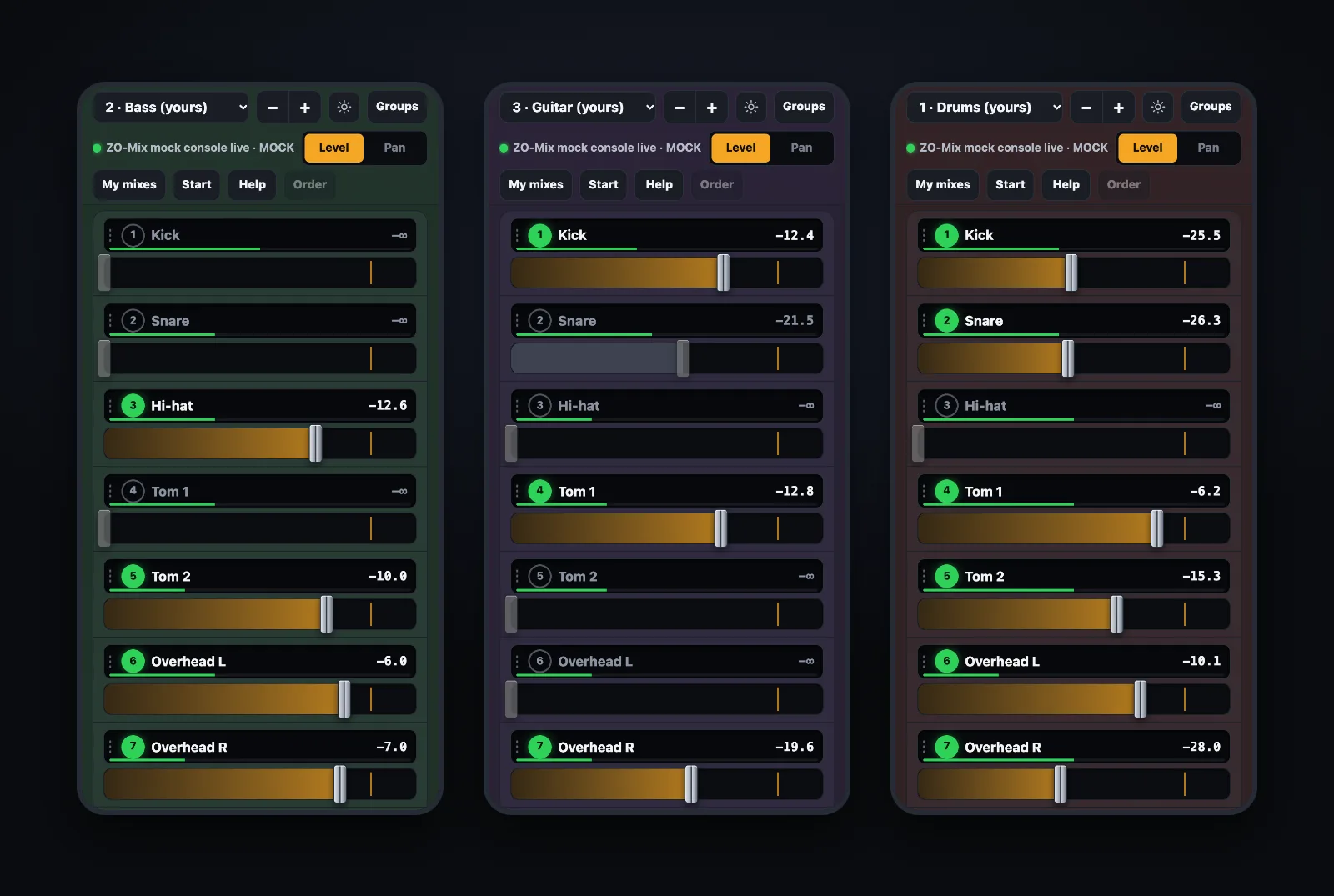
The moments that made me build this
Anyone who has stood on a stage with in-ears knows these. Here is how they go with ZO-Mix:
"More click, please"
You point at your ear and try to catch the engineer's eye while they are busy with the singer. Here you just bring it up yourself. It changes your mix only, and the audience hears nothing different.
Every gig starts from zero
Another soundcheck, the same mix to build again. Here you save a mix per band, load it next time, and compare it with what you had.
The click is stuck in a group
The engineer put the click in the computer group, and you only want to change the click. Tap Out on the channel and it gets its own fader. No dragging mid-show, and the group stays as it was for everyone else.
How does the bass player's mix sound?
You can look at another musician's mix. Your screen comes back to your own after 25 seconds, and you change nothing of theirs meanwhile. If the engineer allows it, you can also fix something small, and then you are back home.
"I've got no guitar!"
No need to shout. Tap Help, No sound, pick the channel. The engineer gets a red bar they cannot miss, saying what happened and where. Sorted itself out? Solved takes the call back.
Just wanted to say something
Ask for a longer delay, say the next song changed, or tell a joke between songs. There is a private chat between each musician and the engineer, with no talkback involved.
A regular show and a show with ZO-Mix
Not every stage is the same, but this is roughly the usual story.
Changing your monitor
Usually: you wait for the engineer to turn around. Here: you move a fader, right when you need to.
Talking to the engineer
Usually: hand signals and talkback. Here: a problem key and a chat, with the answer on your screen.
Last show's mix
Usually: build it again and hope you remember. Here: load the mix you saved.
What to install
Here: nothing. Scan a QR code, type a name, pick an instrument, and it opens in the browser.
Who dropped off the network
Usually: you find out when the musician shouts. Here: the engineer's screen shows who is connected, and who left and when.
Chaos mid-show
Here: Show mode locks what should not change, and the musicians carry on as usual.
It's all on the screen, no training needed
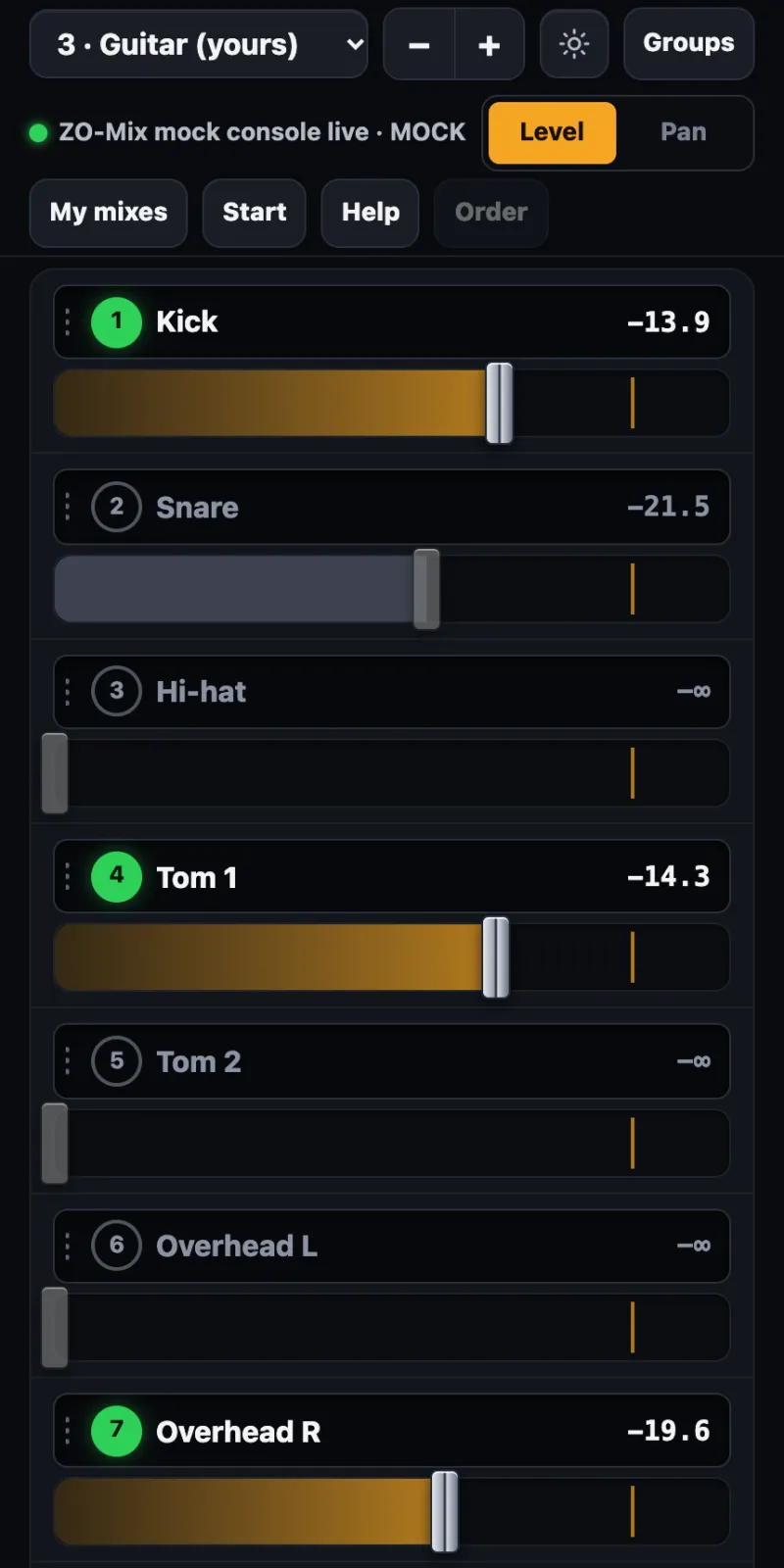
I made it look like a small console, with big keys that are easy to hit in the dark.
A colour for each mix
The screen has a soft tint of its own. One look tells you that you are on the right mix.
See if there is signal
A thin green line on each channel shows that signal is coming from the stage. Can't hear the guitar? One look tells you if it is playing at all.
Built the way you like it
Pan, groups and your own channel order. The channel that matters most can sit first and be bigger.
Mixes are saved
Save per band, compare mixes, and go back to what you had in one tap.
You can't break anyone else's
A musician changes only their own mix. The engineer chooses which mixes are open, and can lock everything.
No internet needed
One Mac by the console, one router, and the phones on its Wi-Fi. That's all.
Talk to the engineer without shouting
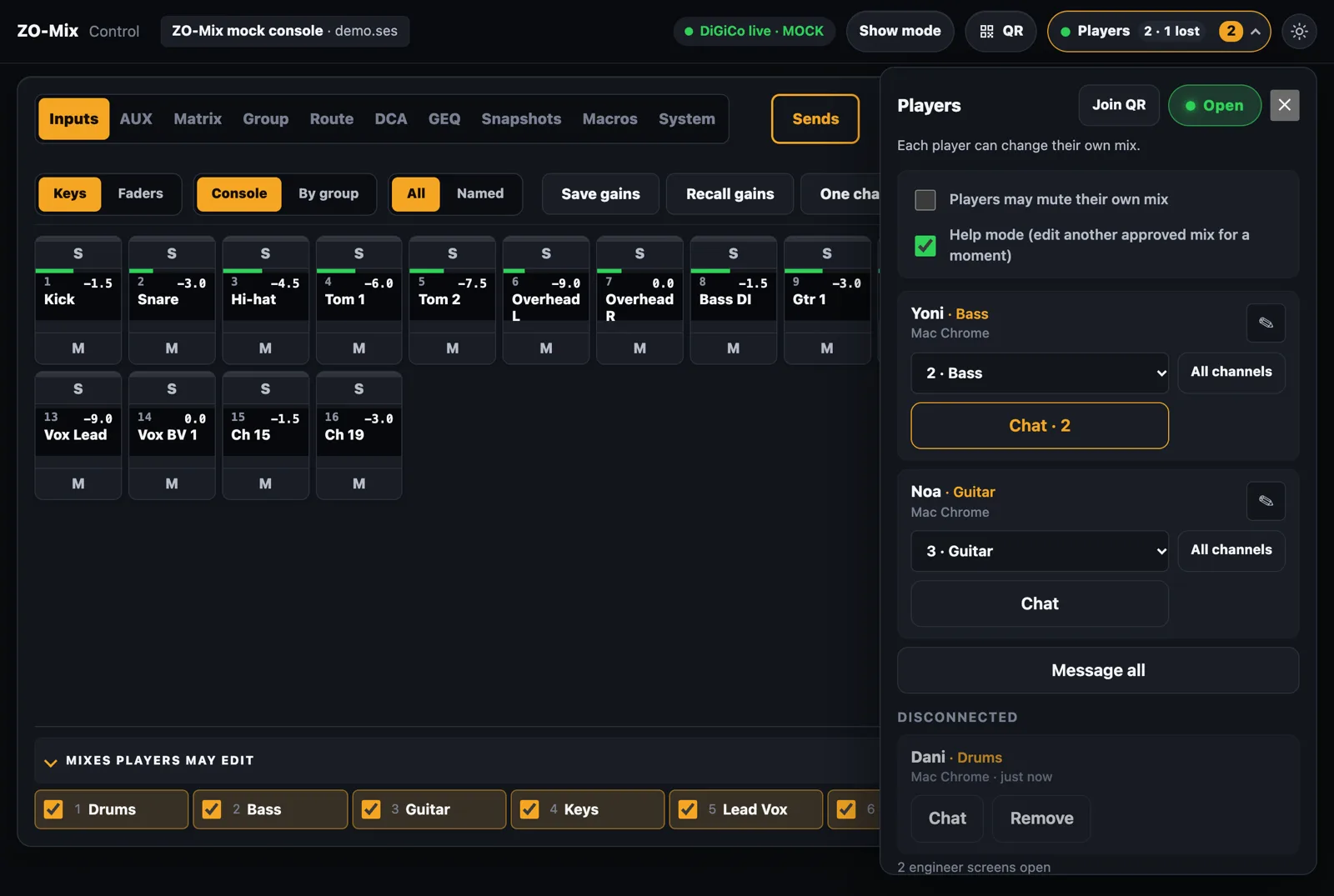
A problem is a key, and everything else is a chat. You can also mark it as solved, so nobody runs over for nothing.
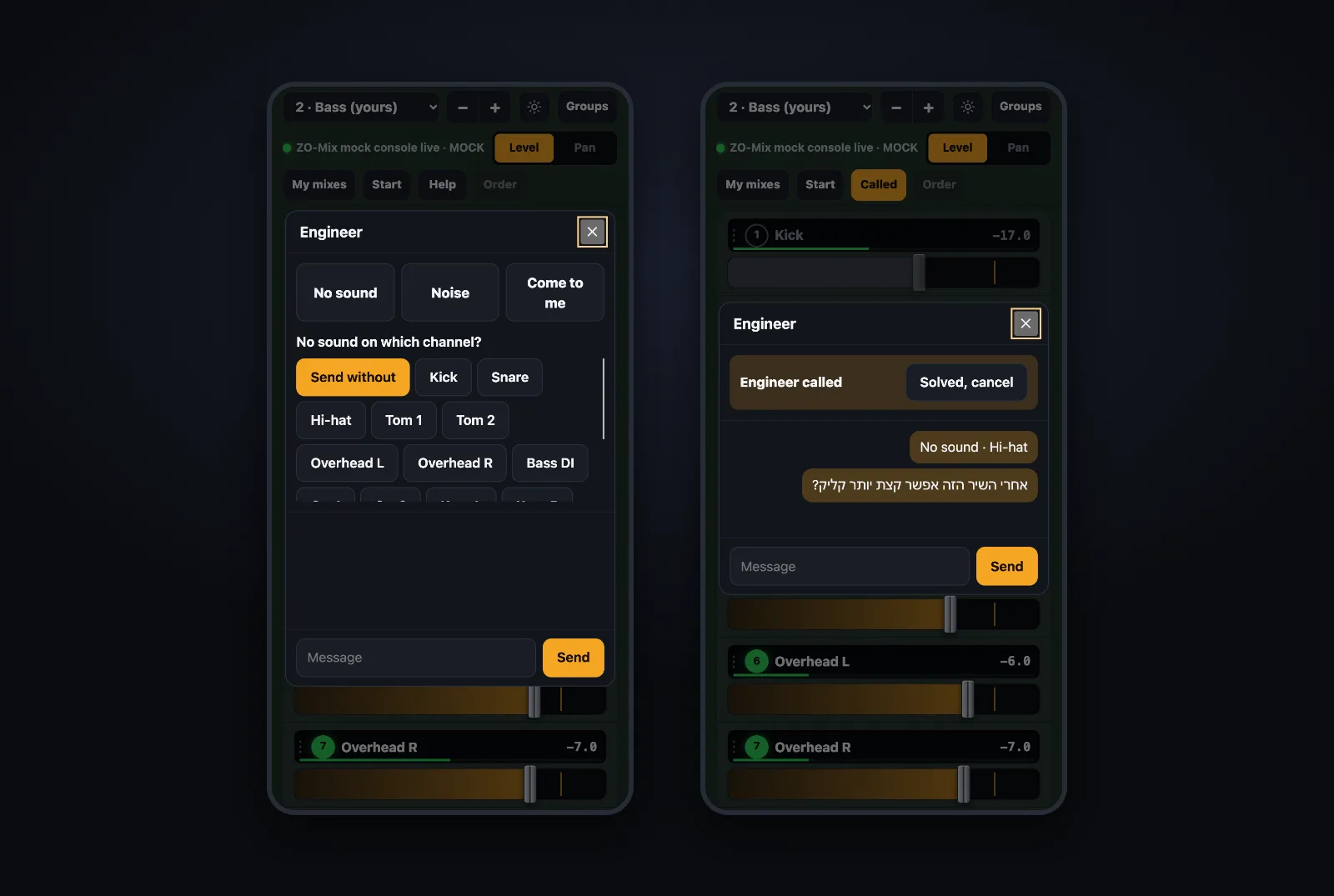
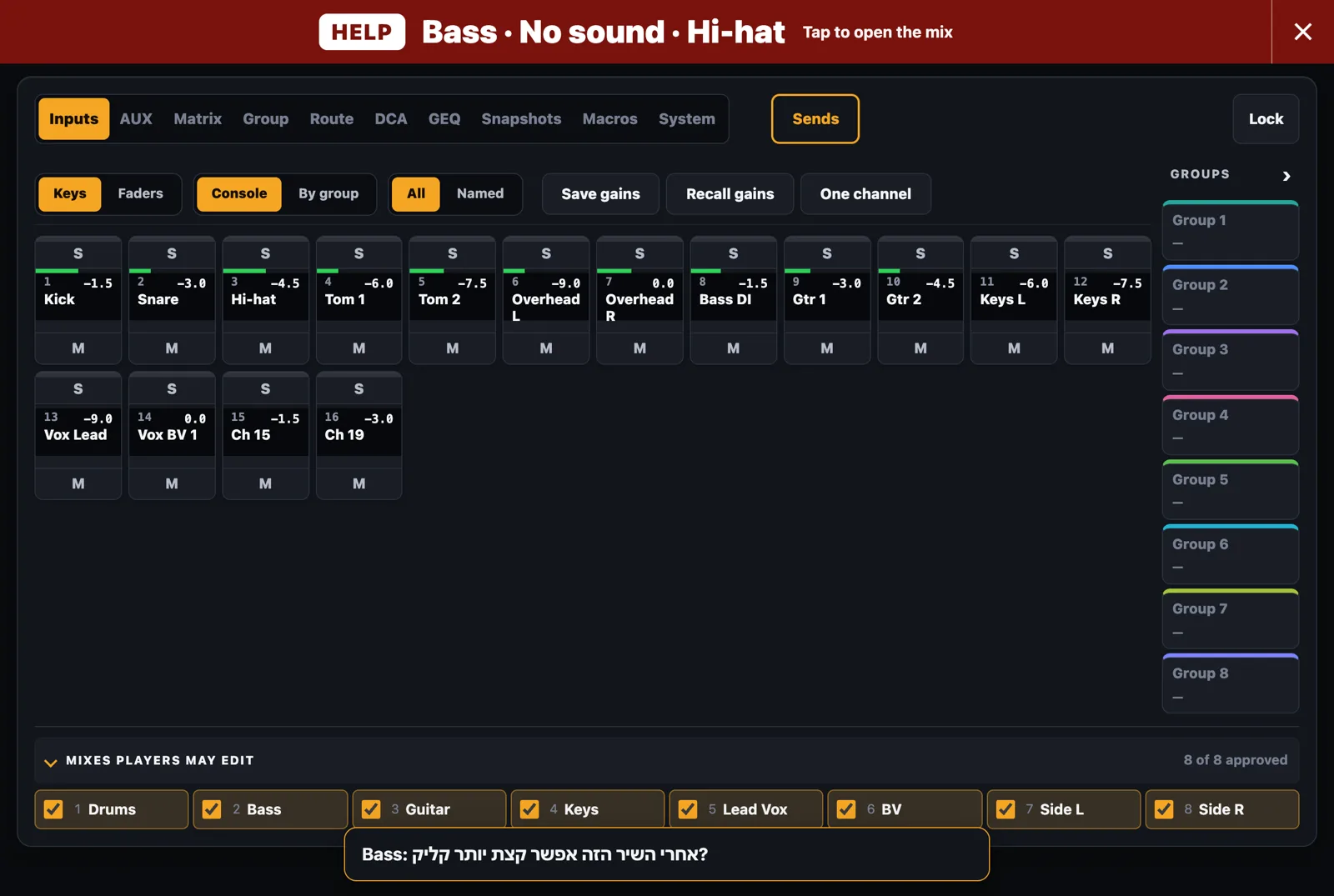
A problem in two taps
No sound, Noise or Come to me, and which channel if you like. Only things a musician cannot fix alone.
A chat with each musician
A message pops up at the foot of the screen and blocks nothing. The engineer has ready replies, like On it and One moment.
A message to everyone
"Five minutes" to all the musicians in one tap.
This space is yours
ZO-Mix is still in pre-release, and I am not going to write reviews here myself. Tried it on stage? Tell me how it went and give it a score from 1 to 5. With your OK it goes up here, with your name and instrument.
The whole console on a tablet by the stage
Running to the stage to fix something? The tablet comes with you. Inputs, AUX, Matrix, Group, Route, DCA, GEQ, Snapshots and Macros in tabs, with faders, solo and mute, Sends on Faders and a full channel window.
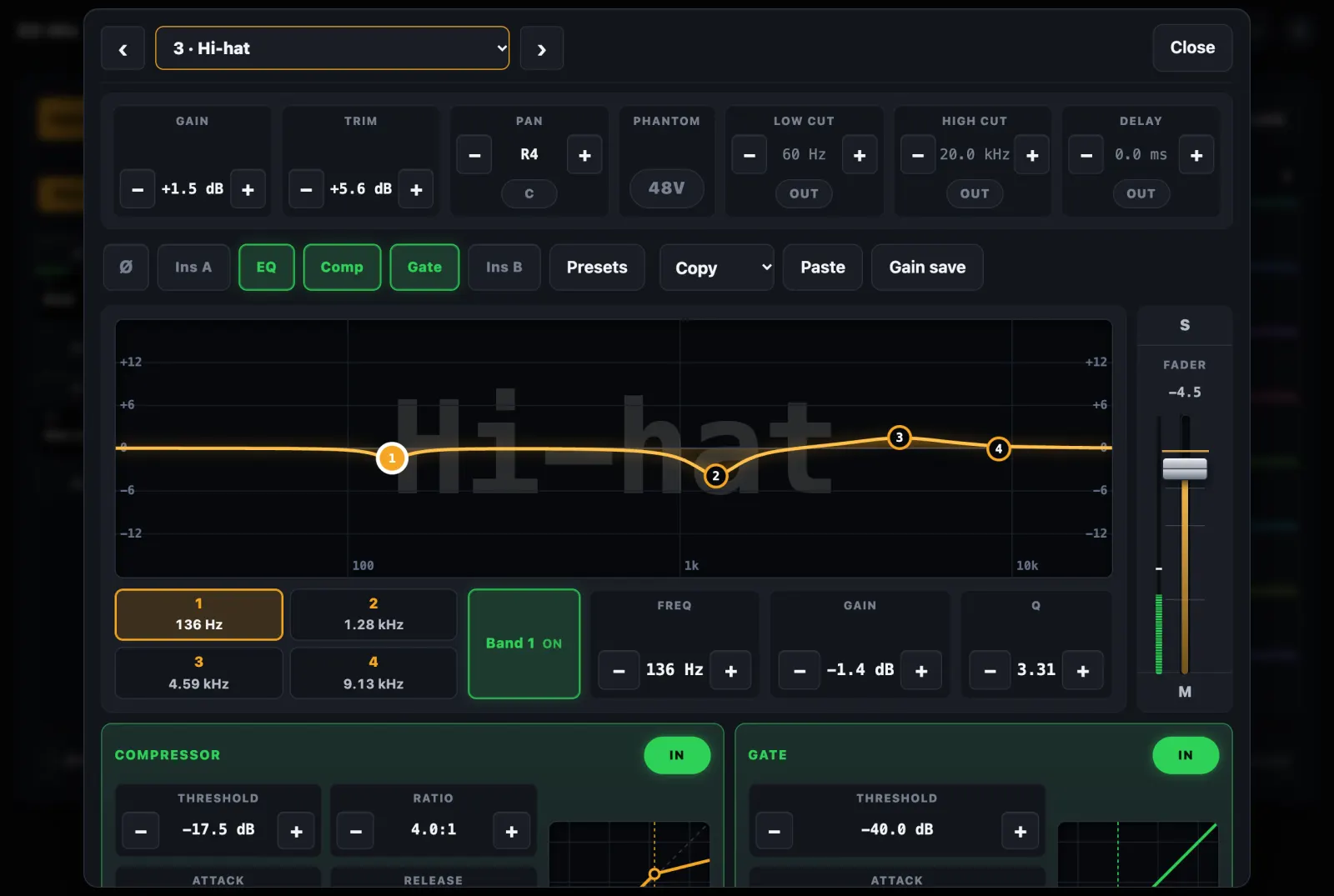
Channel window
Drag the EQ with a finger; compressor, gate and delay. The fader moves only by its head.
Copy and paste
PEQ, compressor and gate from channel to channel, and console presets by folder.
DCAs and groups
DCA mute and fader, and each channel shows which DCA silences it. One channel can be opened under a muted DCA.
See signal on a channel without opening its mute
Pre-fader meters read straight from the console. A channel with signal lights up with its mute closed and its fader down, so you check connections quietly, sending nothing to the system.
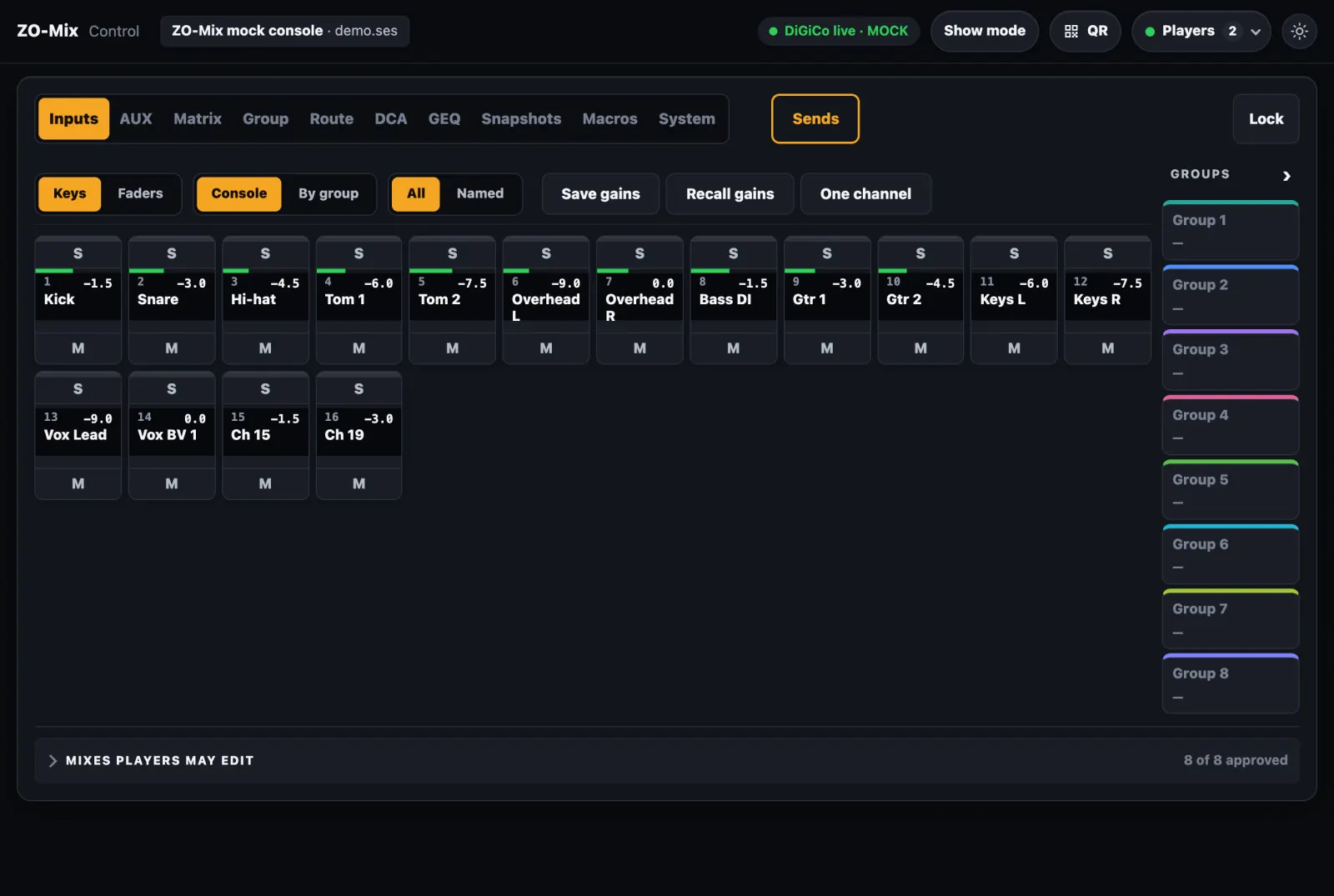
A thin line in the key
One look across every channel shows where there is signal.
A proper bar by the fader
A segmented bar with a peak mark, on the Inputs tab and in the channel window.
A relative scale
The meters show whether there is signal and how much, relatively. No dB numbers or clip light yet.
Change the patch, and the gains come back with one hold
Every engineer knows this one: change the patch, and each channel takes the gain of its new preamp. Instead of going channel by channel and trying to remember, ZO-Mix gives each channel back the gain and 48V it had.
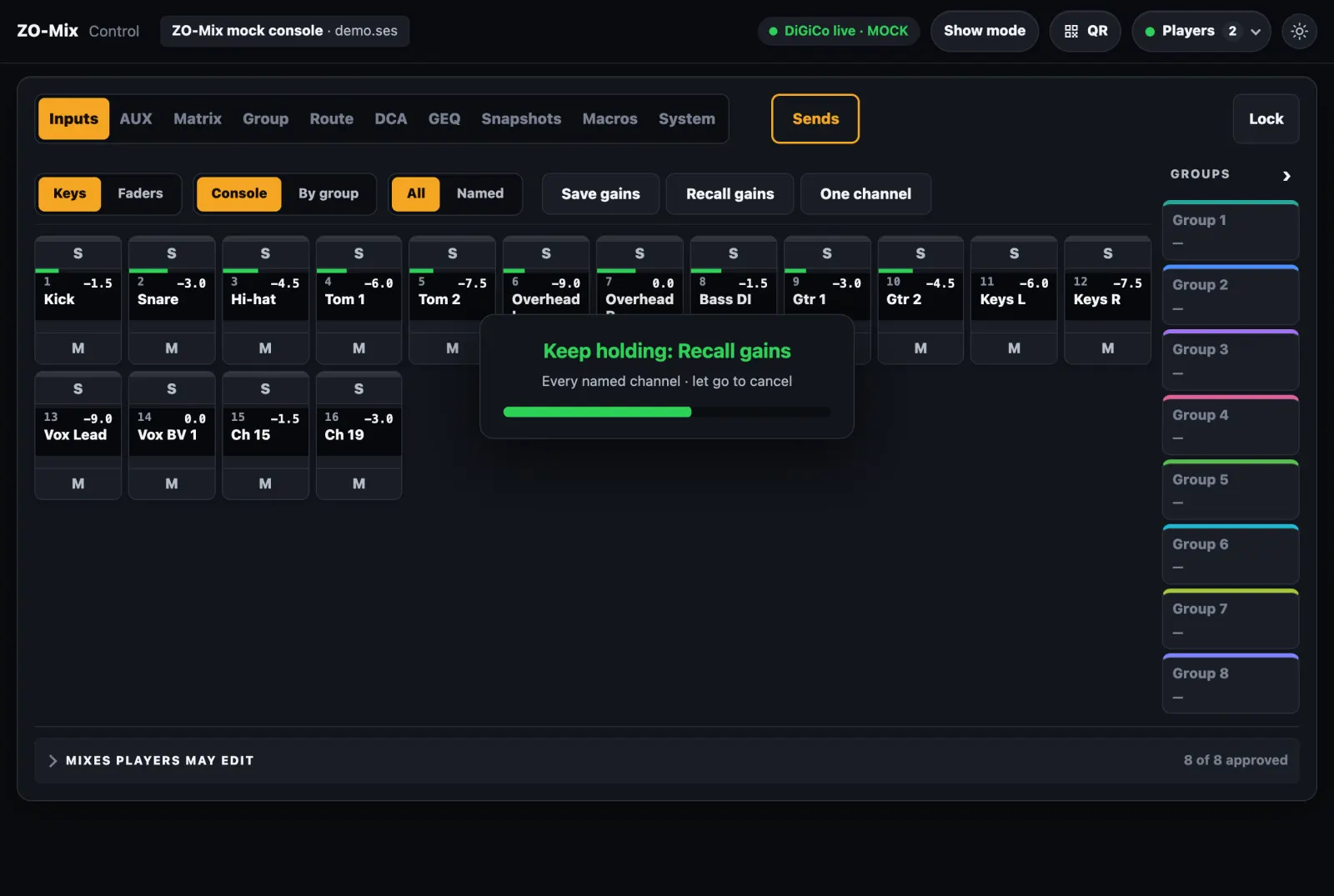
1. Save
Press Save gains, and ZO-Mix keeps the channels' gain and 48V. A Save As on the console keeps them too. Without a save nothing is kept, not even when a file loads.
2. Change the patch
At the next show, load the file and change the patch on the console, as always.
3. Recall gains
Hold for 2 seconds, and every named channel returns to the saved values. A line on screen says how many came back.
Safe for the system
Gains go down first, then 48V, and only then up. Before 48V goes on, the screen names the channels and asks.
One channel too
Need just one? Choose it and recall only that, or tick which channels to bring back.
A unique name on every channel
A channel that moved to another number is found by its name, so each channel needs its own: TOM 1 and TOM 2, not TOM twice. Channels sharing a name go back by number, and channels with the console's default name are left alone. Players' saved mixes and groups also find a channel by its name, not its number, and a channel still under its default name, like CH 12, is not saved in a Player's mix.
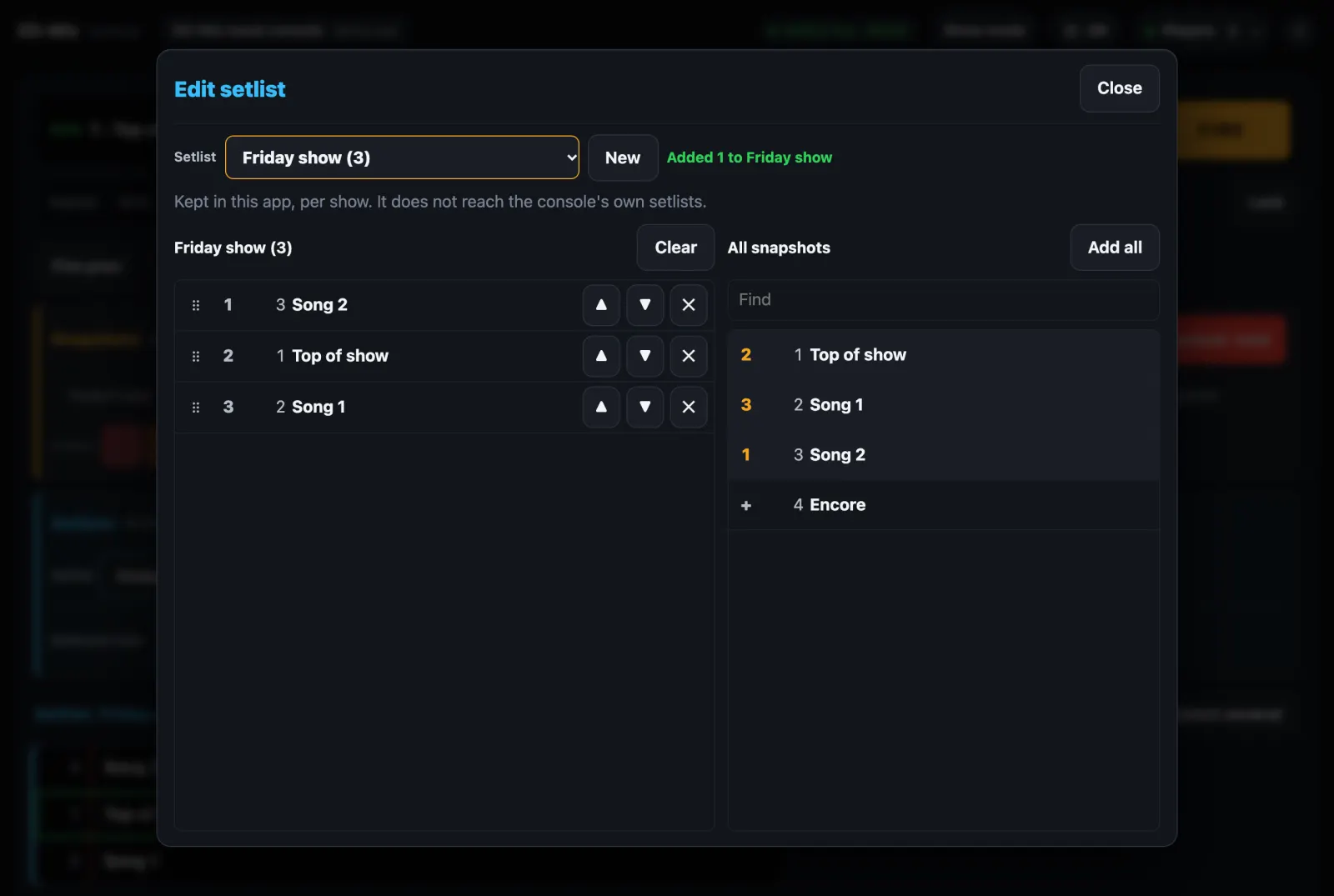
The whole snapshot window, and setlists for every show
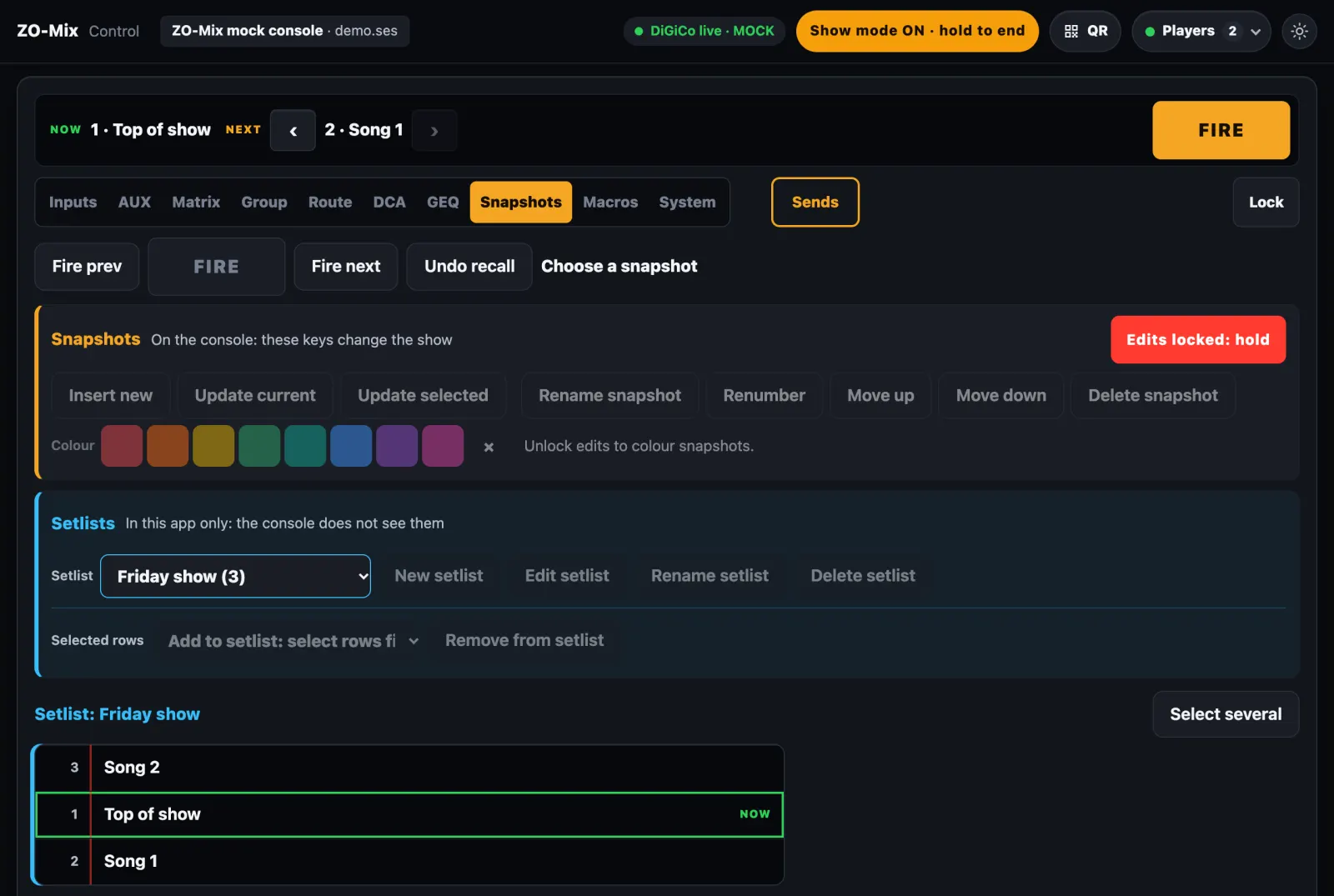
The Snapshots tab has two clear zones: amber for what changes the console, blue for setlists, which stay in the app. NOW, NEXT and FIRE live on this tab only, so no other tab can fire a snapshot by mistake.
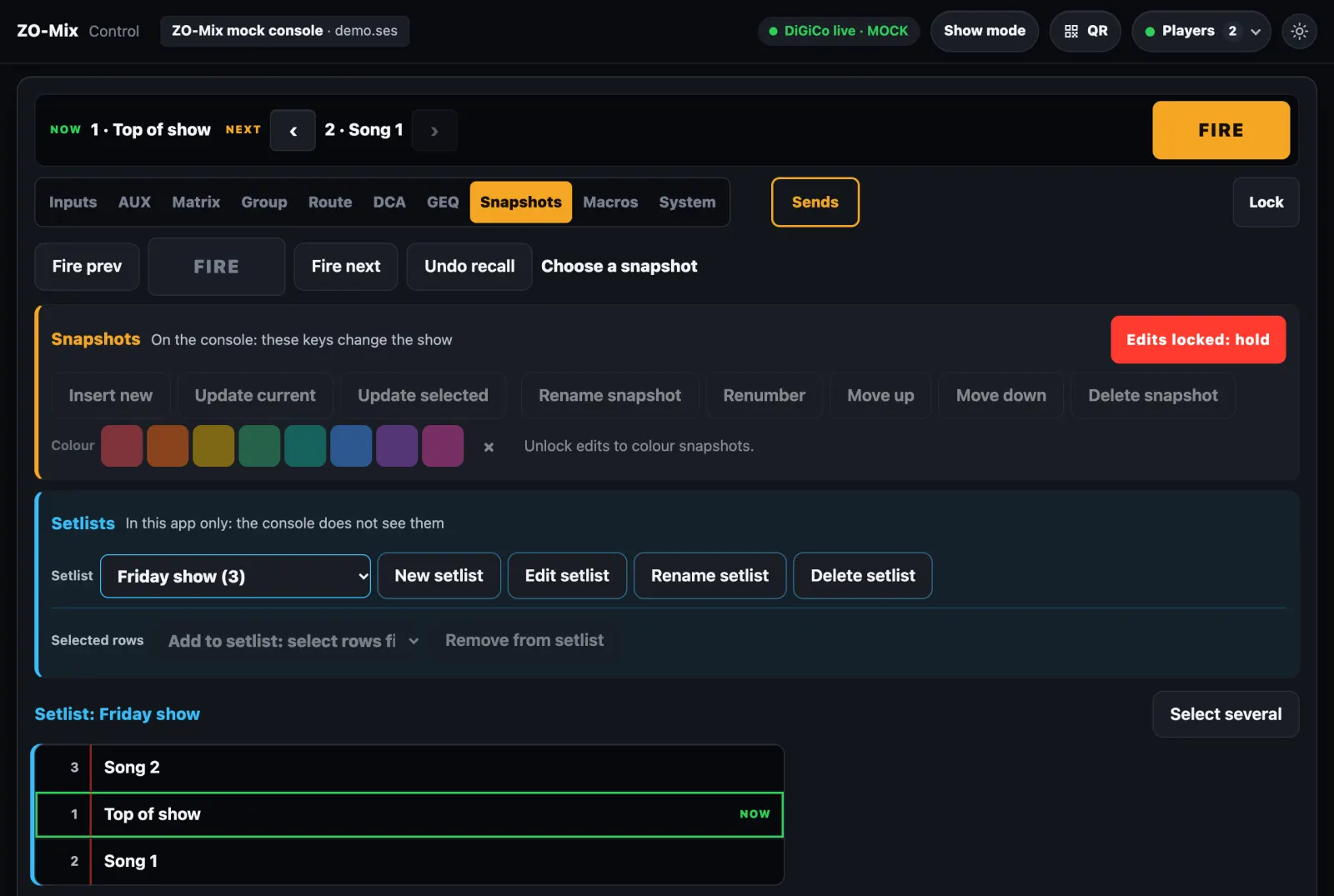
A colour per song
Colour snapshots to see at a glance what belongs to one song.
A lock on editing
Choosing and firing stay open, and editing opens only by a long press.
Setlists in the app
Setlists are kept in the app per show and are not synced with the console's own.
Peace of mind mid-show
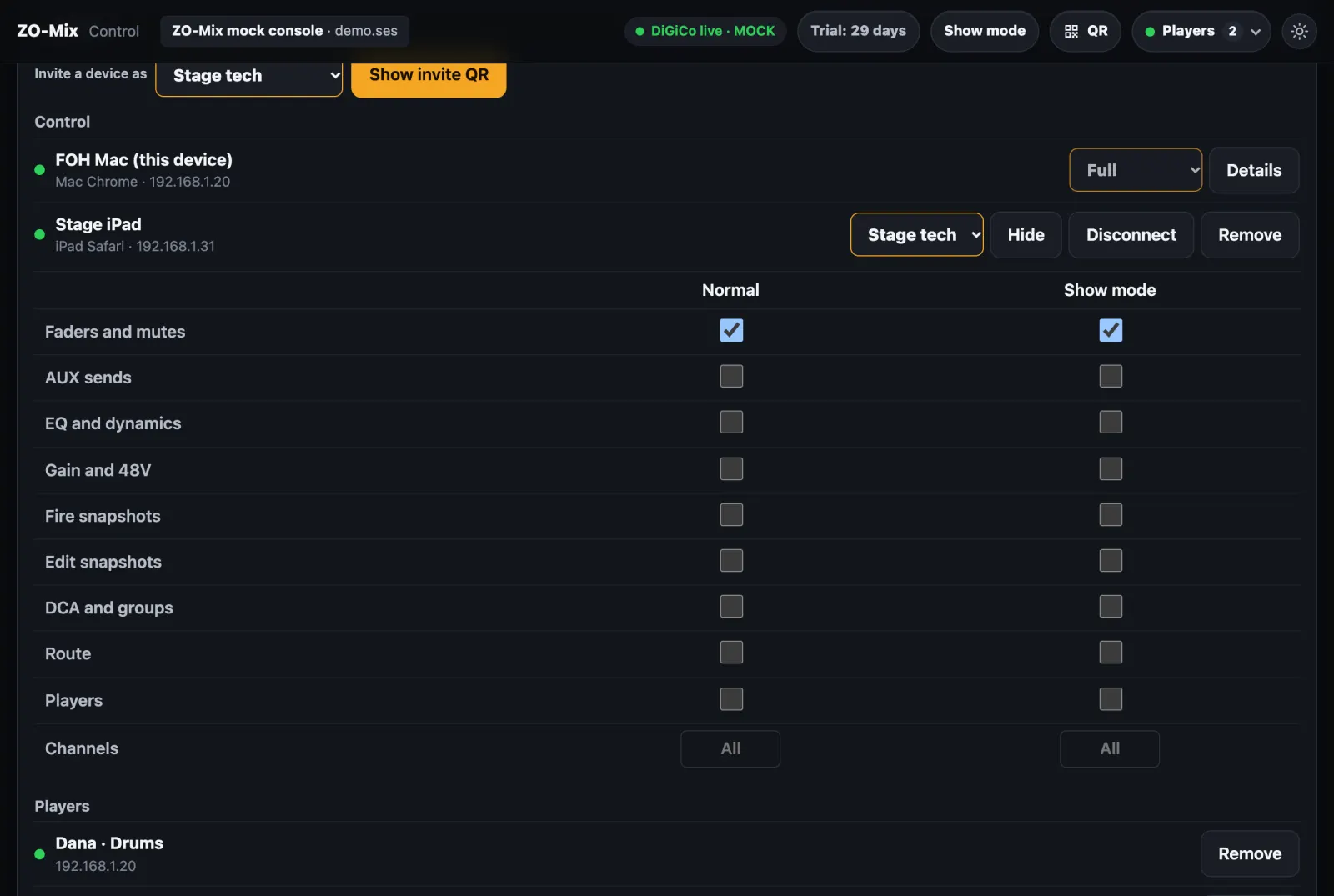
A new device on Control gets in only after you approve it, once. Before a show, tap Show mode: faders, sends, pan, processing and firing snapshots stay open, gain opens with a 2 second hold and locks itself again after 25 seconds, and everything else goes dark. The musicians feel nothing.
Approved once
A dropped network or a reload asks nothing again. An invite QR can also let one device in at once.
Permissions by area
Full, Stage tech and View only, or an exact choice of areas and a range of channels.
Show mode
Tap to start, hold 2 seconds to end. Musicians' connections are not affected at all.
The full document
A steady network matters more than speed
ZO-Mix carries control data, not audio, so even a small router can do. At a show, what counts is range and stability.
High, with a line of sight
Not inside a rack or behind the console. A crowd and metal gear weaken the signal.
5GHz, a fixed channel
We suggest channel 36–48 and 40MHz width, not Auto, so the network does not jump during a show.
Measure on site
With the band on stage, at the farthest musician. Aim for -67 dBm or better. If that falls short, move to a professional access point.
Three steps
1. Install on the Mac and enter a name and email. 2. On the console, in External Control, add a device of type DiGiCo with the Mac's address, Send 52300 and Rcv 52301. 3. Musicians scan a QR code, type a name and choose an instrument.
30 days with everything open, then a yearly license
One license for one Mac. After the trial without a license, inputs 1–8, mixes 1–2 and DCA 1–3 stay open for fader and mute. That change applies only at the next start of the app, never during a show.
The 50 founders
₪149 a year, until 31 March 2027 or until the places run out. The price holds for 3 years.
After that
₪299 a year.
Requirements
A Mac with Apple Silicon (M1 or later), macOS 13 or later, a router, and a Quantum or SD console.
A rental company or a venue? Talk to me
Questions
Is there a personal monitor mixing app for DiGiCo?
Yes. ZO-Mix gives every musician their own mix on their phone, in the browser, on DiGiCo Quantum and SD consoles. It runs on a Mac, and the musician changes the AUX sends of their own mix.
Do I need a hardware personal monitor system like Klang or Aviom?
Not to control the mix. The phone controls the console's AUX sends, and the audio reaches the musician over your existing monitor path, such as in-ears. You need one AUX per musician, and ZO-Mix does not process audio.
Can a musician mess up the PA?
A musician changes only the sends of their own mix, which does not touch the PA. You choose which mixes are open, and you can lock everything.
What happens to chat messages?
They stay until the app closes, and they do not pass through the internet or the console.
What if a musician loses Wi-Fi?
They cannot send a message, but the engineer sees that they dropped off. When the network is back they connect by themselves, with no new approval.
Does ZO-Mix change things on the console?
Yes. Faders, mutes, sends, EQ, snapshots and more are written to the console. That is why there are locks and permissions, and why it is worth trying first at a soundcheck.
What has it been tested on?
A physical Quantum 225, and Quantum 338, Quantum3 and SD10 on DiGiCo's Offline software. Other models are expected to work but have not been verified, which is why this is a pre-release.
What does pre-release mean?
The software is complete and notarized by Apple, and we are still gathering experience from the field. Your feedback directly shapes the next versions.
Do musicians need to install an app?
No. They scan a QR code or open an address in the browser.
Is internet needed?
Not at the show. It is needed to download, to activate a license and to register; registration is sent later if there is no connection.
Is there metering or timecode?
There are pre-fader meters on every input, and they show signal with the mute closed. The scale is still relative, with no dB numbers or clip light. We have found no way to timecode over OSC.
Can I see Mustard processing?
Not yet. In the OSC tree we checked on a Quantum 225, we found no Mustard addresses.
What if a device loses the network during a show?
It reconnects by itself when the network returns, with the same permissions and no further approval.
My Mac crashed or was replaced. What about my license?
One license is for one Mac. If your Mac crashed or was replaced, write to me and I will approve the same code on the new one, with no new payment and the same expiry date.
Does it run on Windows?
Not for now: Macs with Apple Silicon only.
Try it at your next soundcheck
30 days with everything open, no credit card. Just a name and an email on first launch.