Before you start
- A Mac with Apple Silicon (M1 or later), macOS 13 or later.
- A router, a DiGiCo Quantum or SD console and the Mac, all on one network.
- Phones or tablets for the musicians, on the router's Wi-Fi.
- ZO-Mix writes to the console: faders, mutes, sends, EQ and snapshots change on the console itself. Try it first at a soundcheck or rehearsal.
1. Network
- On the router's admin page, set an address for the router (for example
192.168.1.1) and netmask255.255.0.0. Leave DHCP on. - Connect the console's network port to the router by cable, and give the console a fixed address in that range, for example
192.168.1.50, with netmask255.255.0.0. - Connect the Mac to the router. ZO-Mix's Setup screen shows the Mac's address and warns if the console is not on the same network.
2. Install
- Download ZO-Mix for Mac, open the zip and drag ZO-Mix to Applications.
- Open ZO-Mix. It sits in the menu bar, with no Dock icon. It is signed and notarized by Apple.
- macOS asks to let ZO-Mix find devices on the local network: choose Allow. If the firewall asks about incoming connections, Allow too.
- The Setup screen opens in the browser. At the first start enter a name and email, and the 30 days begin.
3. The console (External Control)
The same on Quantum and SD. On the console: Setup → External Control, enable External Control and add a device with Name ZO-Mix, Type DiGiCo, the Mac's IP address as shown on Setup, Send 52300, Rcv 52301, Enabled on.
Then on ZO-Mix's Setup screen, type the console's IP address and press Save and connect. After a few seconds the status at the top changes to DiGiCo live.
Still disconnected, or the console stopped answering? On the console turn Enable External Control off and on.
No console around? Tick Try ZO-Mix with the built-in demo console.
4. Musicians join
- On the Mac: menu bar, ZO-Mix → Open Control, then QR in the top bar. Musicians scan Open your mix, which carries the 6-digit join code. They type a name and choose an instrument, which is their AUX.
- Without a QR code: open the Mac's address with
:8765/playerin a browser, for examplehttp://192.168.1.20:8765/player, and type the code shown on Setup.
Changing the patch: Save gains and Recall gains
Important: give every channel a unique name. A channel is found by its name, so do not call two channels the same: TOM 1 and TOM 2, not TOM twice. Channels sharing a name go back by number, and if the patch moved them they may get the wrong gain. Save gains lists names used more than once. Players' saved mixes and groups also find a channel by its name, not its number: a renamed channel will not be found, and a channel still under its default name, like CH 12, is not saved in a Player's mix.
- Press Save gains on the Inputs or Route tab. The channels' gain and 48V are kept. A Save As on the console keeps them too while ZO-Mix is running, but a plain Save does not. Nothing is kept when a file loads.
- At the next show, load the file and change the patch on the console.
- Hold Recall gains for 2 seconds. Every named channel returns to the values saved for this file. If 48V is to go on, the screen names the channels and asks first.
- One channel opens a window for a single channel, for choosing which channels to bring back, and for earlier saves. Undo brings back the values from before the recall.
5. Names on the console
Names sent to the console, of channels, DCAs, GEQs and snapshots, are English only. Musicians' names and saved mixes may be in any language.
A silent check with the meters
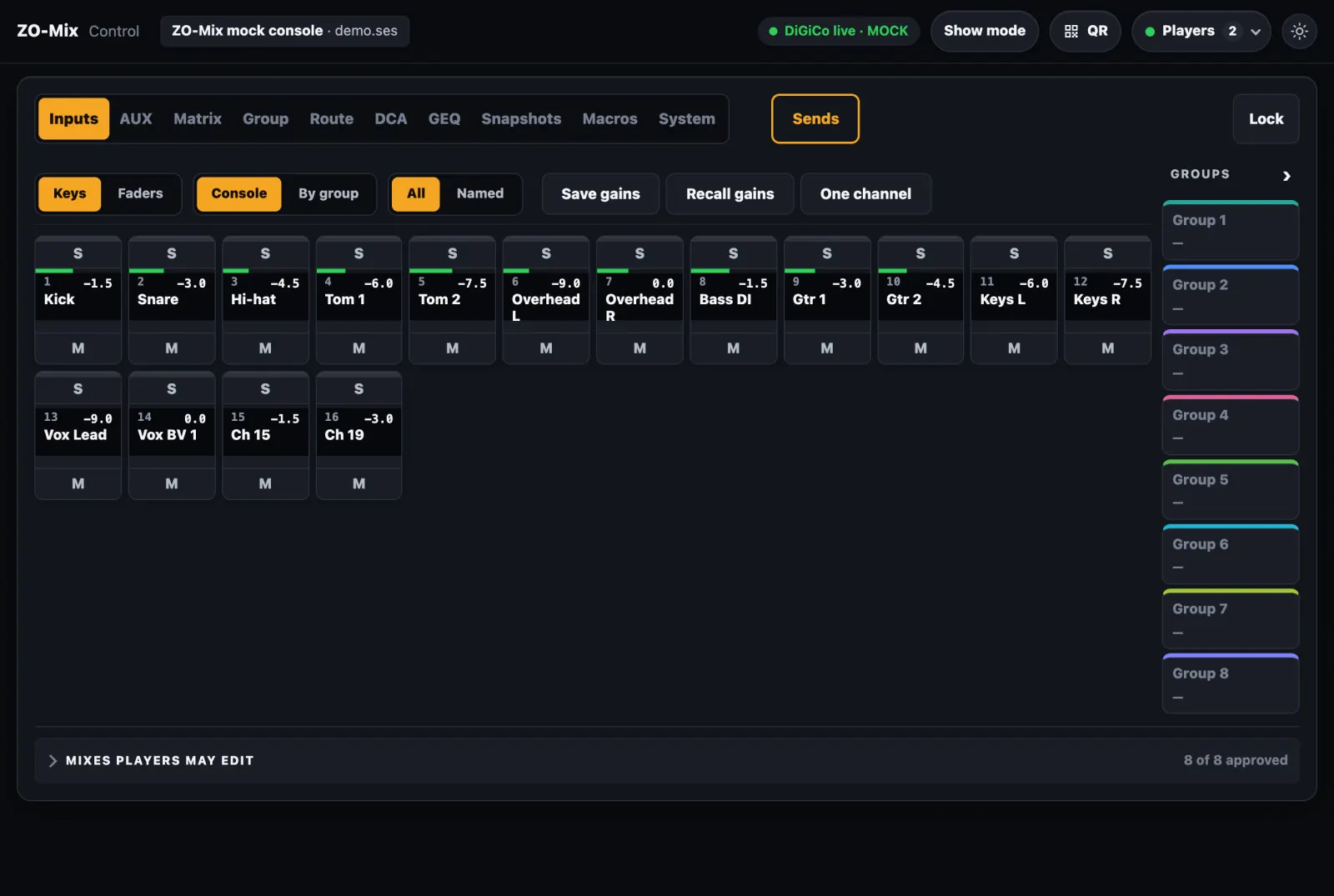
On the Inputs tab there is a thin green line in each channel key, and a full bar by each fader. They show signal before the fader, even with the mute closed, so you can check connections with nothing heard on the system.
Users and Show mode
A new device on Control waits for your approval on the Mac, once. Before a show, tap Show mode: what changes the show locks, without getting in the musicians' way. The full document on Show mode.
A router for the show
- Place it high, with a line of sight to the stage, not inside a rack.
- On 5GHz: a fixed channel 36–48 and 40MHz width, not Auto.
- Measure with the band on stage, at the farthest musician: aim for -67 dBm or better.
- If there is an open guest network not in use, turn it off.
6. Send us feedback
- Menu bar, ZO-Mix → Show Logs, and send
box.log. - The console model and software version, and screenshots of anything that looks wrong.
Limits of the pre-release
- Tested on a physical Quantum 225, and on Quantum 338, Quantum3 and SD10 Offline. Other models are expected to work but have not been verified.
- Pre-fader meters show signal on a relative scale, with no dB or clip. Gain reduction, RTA, Mustard and timecode are not available.
To stop: menu bar, ZO-Mix → Quit ZO-Mix, or Stop ZO-Mix on Setup.