Every event needs a backup destination. Until you choose one, intake from phones is blocked. The backup is encrypted, written automatically after every change, and several versions are kept.
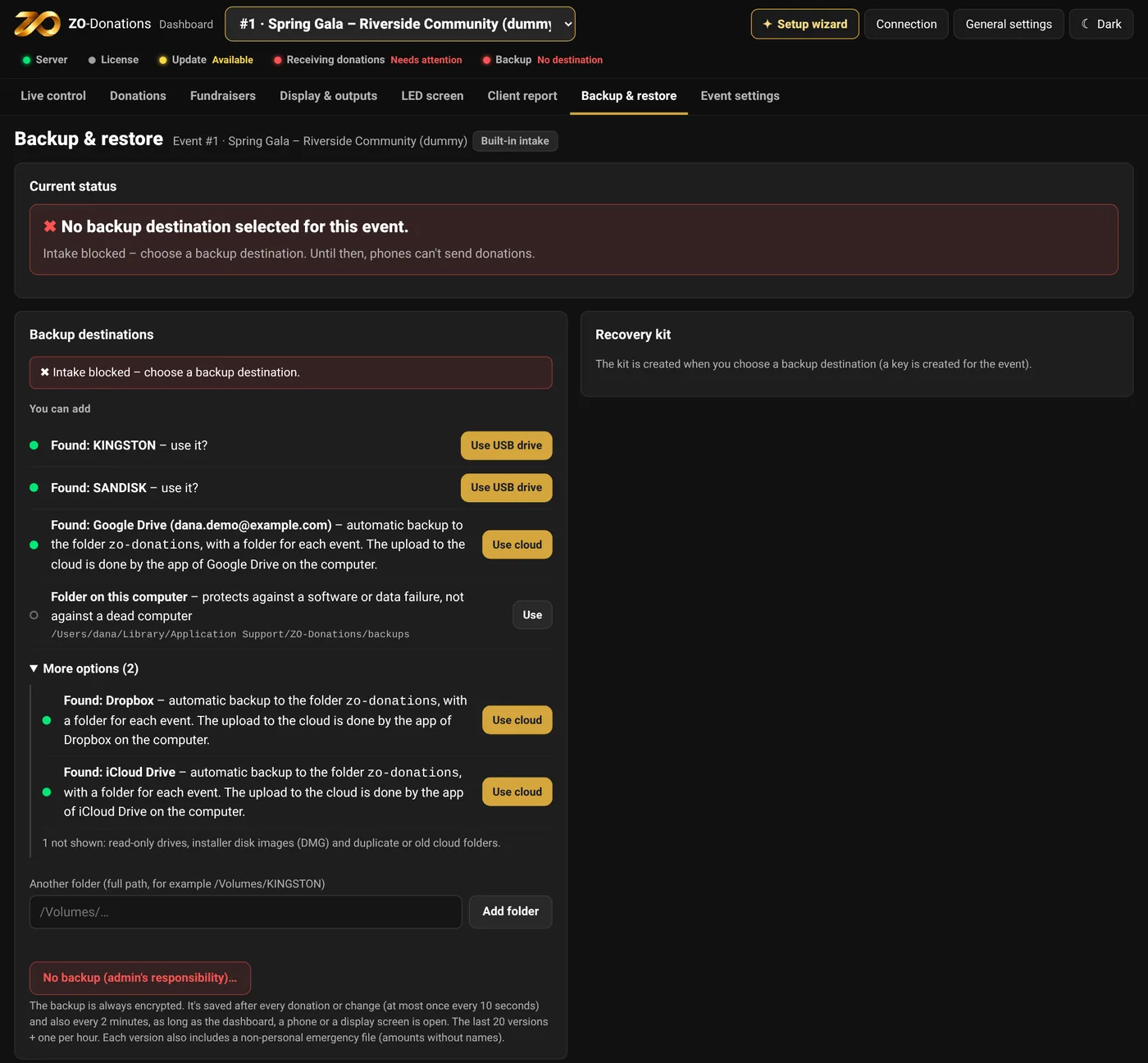
Choosing a destination
- USB drive: the app detects a drive when it's plugged in ("Found: KINGSTON – use it?"). Protects you even if the computer itself fails.
- Folder on the computer: protects against a data problem, but not against a computer that fails.
- Cloud-synced folder (Google Drive for desktop, iCloud Drive, Dropbox, OneDrive): the app detects them, and the backup goes up to the cloud when there's internet.
- You can use several destinations together. "No backup" is possible only as an explicit decision by the event manager.
The "You can add" list is short: first up to two connected USB drives, one cloud (Google Drive first) and a folder on the computer. Any other destinations found wait under "More options". The app doesn't suggest read-only drives, connected installer disk images (DMG) or duplicate or old cloud folders, and shows one suggestion per Google Drive account. A line at the end of the list says how many destinations weren't shown.
The recovery kit
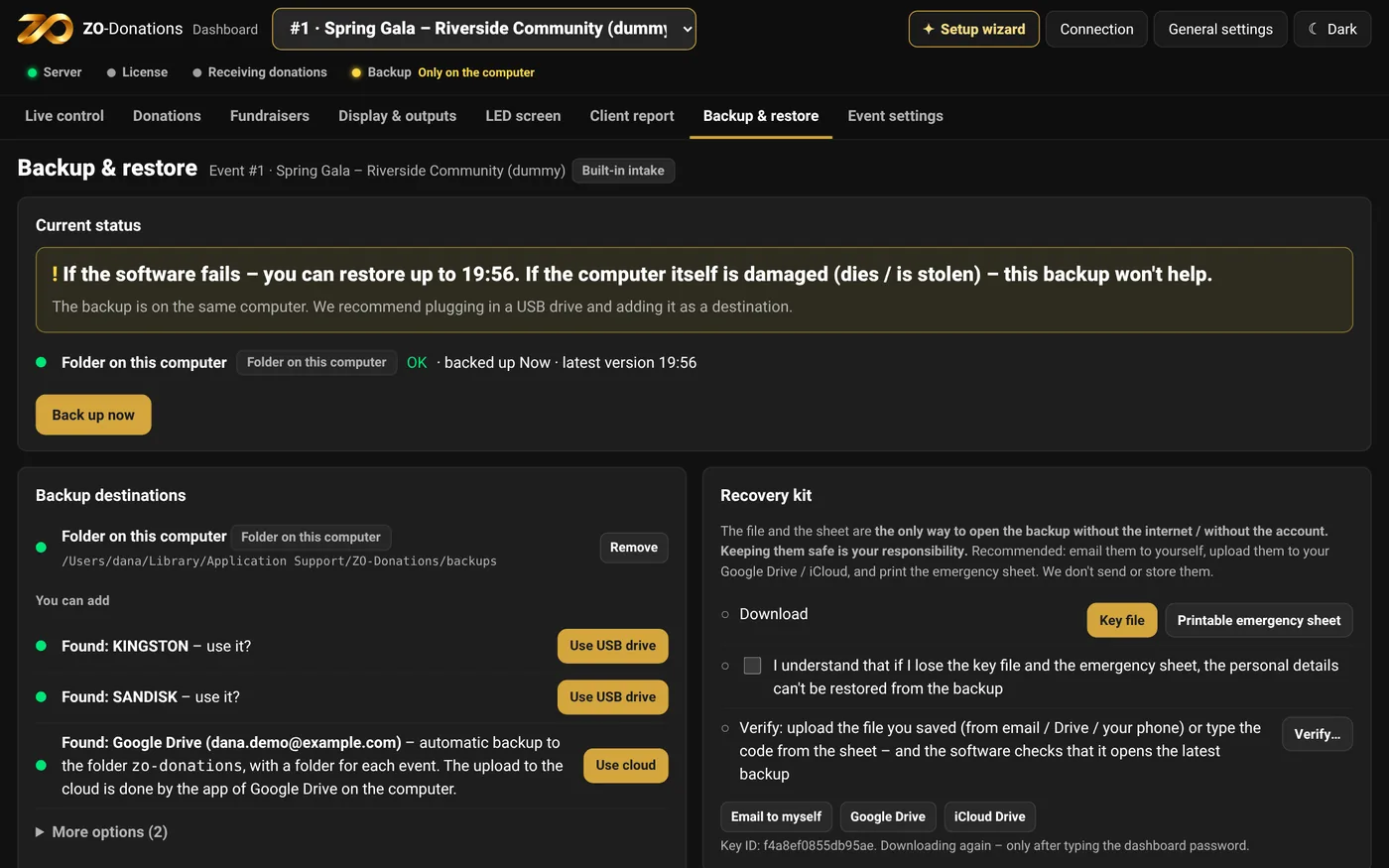
The backup is encrypted with a key that stays only with you. The recovery kit is the key file and a printable emergency sheet. It's the only way to open the backup, and we don't have a copy of it.
- "Download recovery kit", and save it somewhere separate from the computer.
- Print the emergency sheet.
- "Verify": checks that the saved file really opens the backup.
What's in the backup
The event's donations, fundraisers and settings, and also the LED screen settings: the scenes, the Resolume connection and all the canvases, including which one is on air. The graphics and font files aren't in the backup, because they're large: when you restore on the same computer they're already there, and on another computer you upload them again.
Restore
- Backup & restore → Restore: choose a version and restore it.
- Emergency restore on another computer: install the app, and on the "No events" screen choose "Restore from backup", with the backup file and the recovery kit.
End of the event
The backup keeps running even after intake has closed, until you click "Event ended".
The "Backup" chip in the status bar shows, for each destination, when the last backup succeeded, or the reason it failed.