Demo event
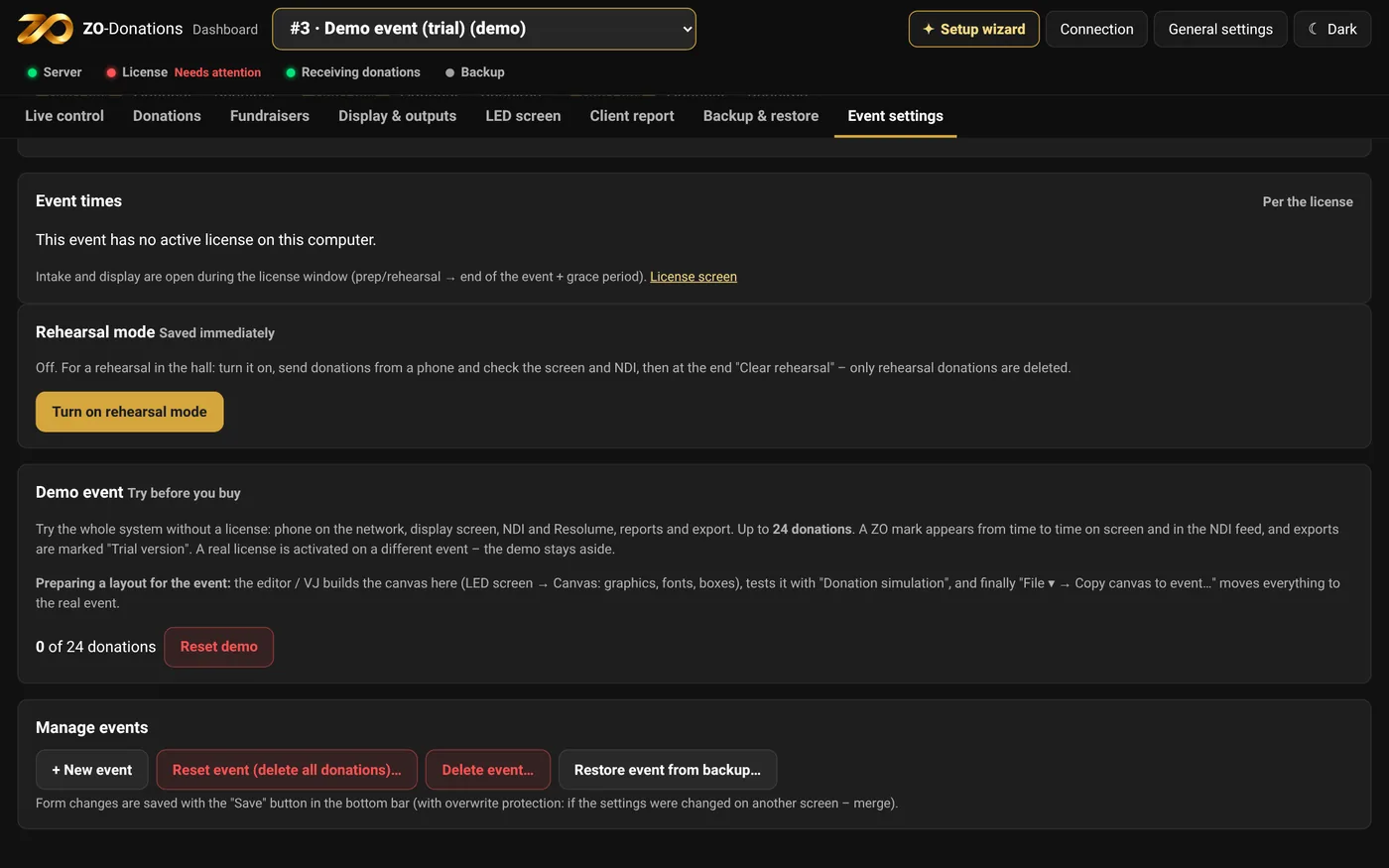
The demo event is a prep environment: always open, no license, up to 24 donations, with a watermark on the screens. That's where you build the layout, test the screens and the output, and then copy the canvas to the real event.
To create one: Event settings → Manage events → "+ Demo event (trial)". "Reset demo" deletes its donations and starts over.
New event
There are several ways, and they all open the same window:
- The event picker at the top of the dashboard → "+ New event…" (the last option in the list). Once it's created, the new event is selected.
- Event settings → Manage events → "+ New event".
- On the license screen: "+ New event" next to the "Events on this computer" list.
The event picker switches between events. For your first event, the easy way is the setup wizard.
Settings
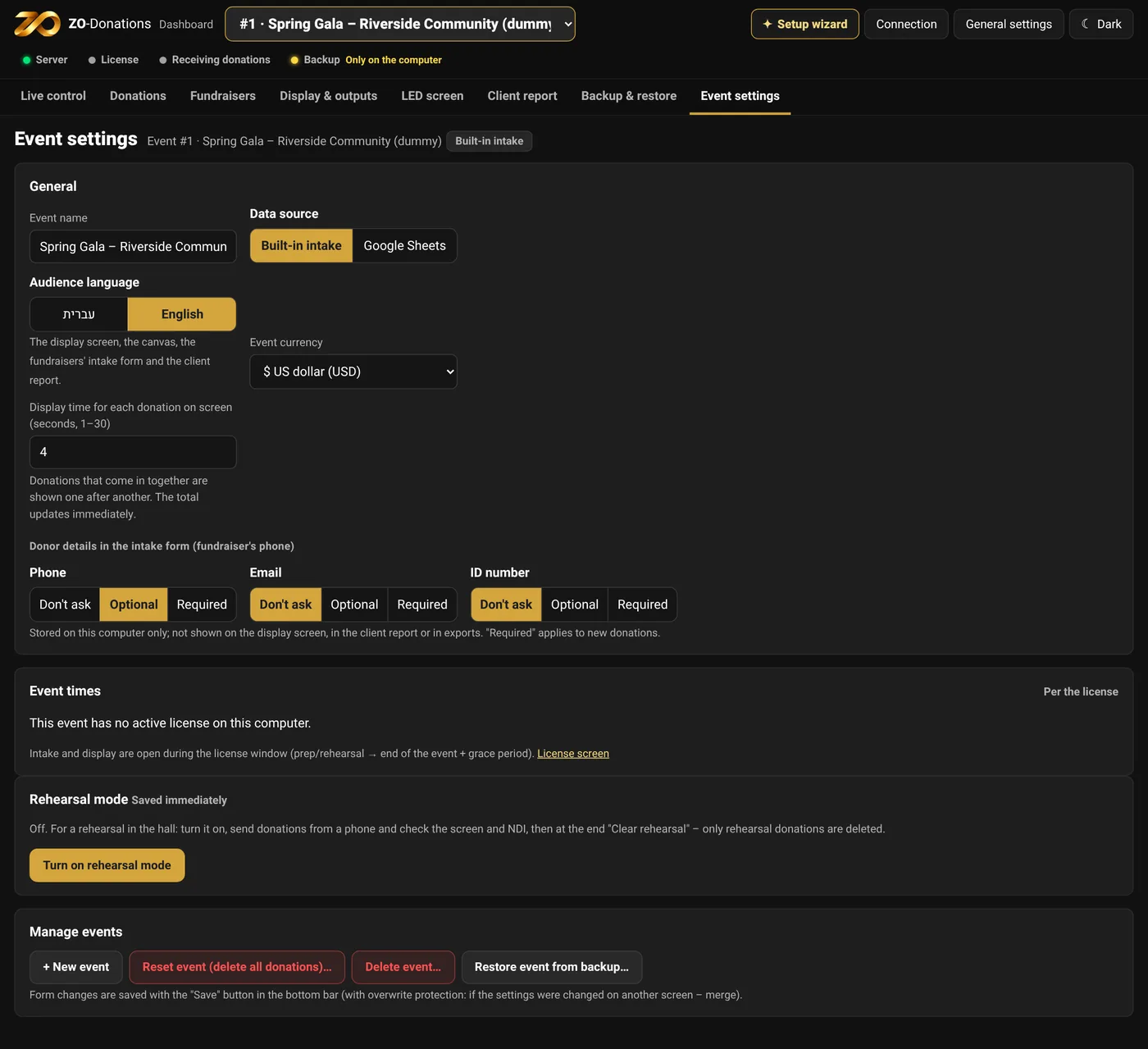
- Event name
- Shown on the dashboard, in the report, and on the intake form used by fundraisers and stations.
- Data source
- Built-in intake (the default): fundraisers and stations with a personal link send from any browser. Google Sheets: the total is taken from a cell in a sheet, for anyone already working with a sheet (needs internet).
- Audience language
- Hebrew or English: the display screen, the canvas, the intake form on phones, the client report and exports. It doesn't depend on the app language – you can run the dashboard in Hebrew for an event whose audience is English-speaking. For an English event, the sample graphics come with English captions.
- Event currency
- ₪, $, € or £, with no conversion. Empty = the currency in General settings. The currency shows on the display, the canvas, Live control, the dashboard, the report and exports.
- Display time
- How many seconds each new donation stays on screen before the next one in line.
- Donor details
- Phone, email and ID number: don't ask, optional or required. The fields appear on the fundraiser's form.
- Event times
- When the fundraisers' links are active. The status shows right away ("Active now" / "Opens on").
- Rehearsal mode
- Donations that come in during rehearsal are marked "Rehearsal", shown on screen but not counted toward the total or the reports. "Clear rehearsal" deletes them. Saved right away, with no Save button. While rehearsal mode is on, an orange bar at the top of the dashboard reminds you in every area (see Live control).
Saving
Changes to settings are saved only when you click "Save" in the bottom bar. Switching to another event with unsaved changes asks first. If two screens edited the same event, your changes are saved, and a field that changed in both places is highlighted.
Deleting an event
In Manage events → Delete. To confirm, type the event number. "Reset event" deletes an event's donations without deleting the event.