Each fundraiser or station gets a personal link. The link opens in any browser – on a phone, tablet or computer – with nothing to install, and donations are sent from there. Each donation reaches the main computer right away and is credited to whoever sent it.
Stations: add a "fundraiser" for each station – for example "Registration desk", "Phone bank" or "Treasurer" – and open its link on a laptop or tablet. At the end of the event you see a count and total for each fundraiser and each station.
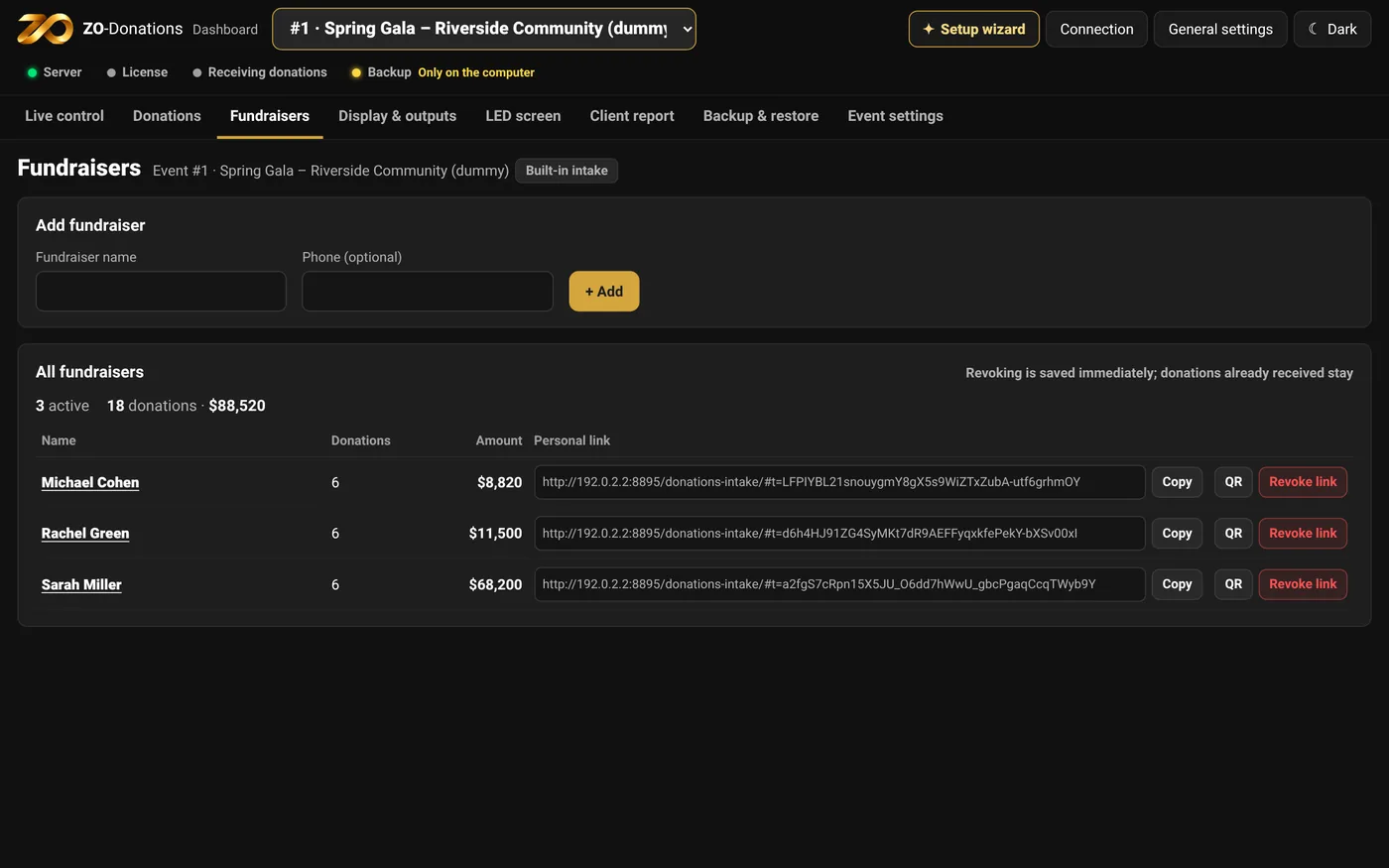
Adding a fundraiser
- Fundraisers → "+ Add fundraiser" (or from Live control).
- A name, and optionally a phone number.
- For each fundraiser: Copy the link (to send it, or to open it on the station's computer), or a large QR code to scan from a phone or tablet.
The switch next to a fundraiser turns their link off or back on. Turning it off blocks the link without deleting donations already sent.
The intake form
The form uses the app's design: a dark background, a gold "Send" button, and "No name" with a gold outline. The form's language and currency follow the event settings.
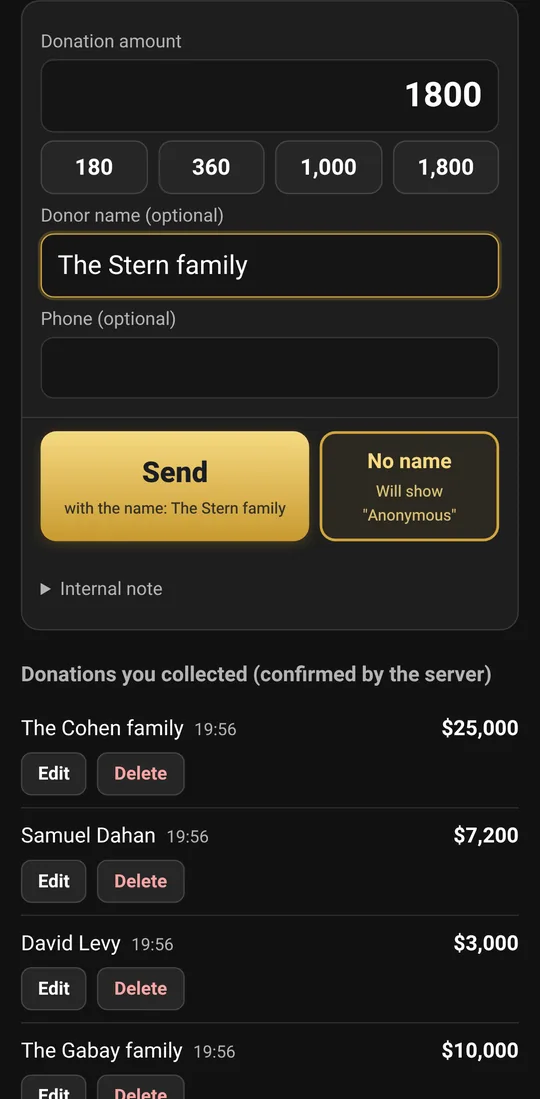
- Amount, with optional quick-amount buttons.
- The donor's name, or "No name", which shows on screen as "Anonymous".
- Phone, email and ID number fields, according to the event settings.
- An "Internal note" that goes only to the dashboard.
- At the bottom: the donations this fundraiser sent, with edit and delete.
If there's no connection to the computer, the donation is kept on the device and sent on its own when the connection is back. The screen shows only what reached the computer and was confirmed.
Network connection
Phones, tablets and station computers need to be on the same network as the main computer (Wi-Fi or cable). The computer's network address is shown in Connection, with a QR code and a copy button.
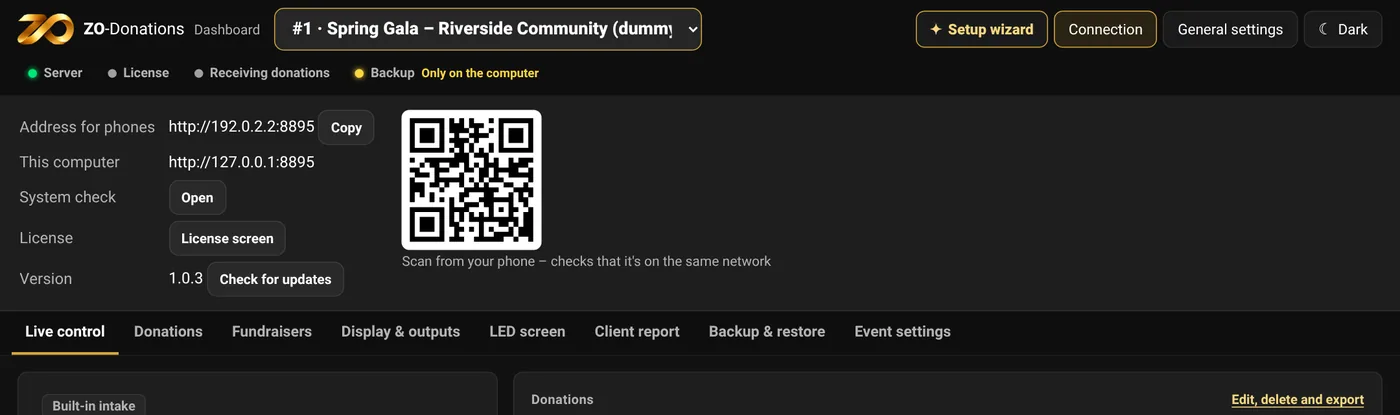
The links include the computer's address. If the computer moved to another network or got a different address, send the fundraisers new links.