Requirements
- A Mac with Apple silicon (M1 or later), macOS 12 or later.
- An up-to-date browser (Chrome, Safari or Edge). The dashboard opens in your default browser.
- For NDI output: Resolume or other software that receives NDI, on the same network.
Installation
- Download ZO-Donations for Mac (the file
ZO-Donations-macOS.dmg, always the latest version) and open it. - Drag ZO-Donations to the Applications folder.
- Open ZO-Donations from the Applications folder. The app is signed and notarized by Apple, so it opens without a warning.
First launch
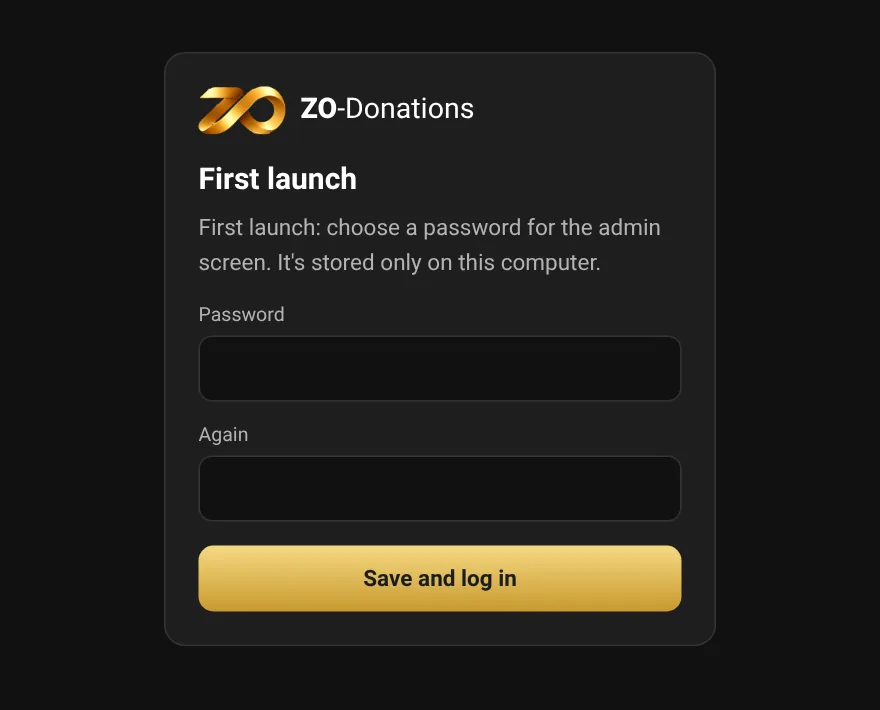
The ZO-Donations icon appears in the Dock, and your browser opens on the "First launch" screen. Choose a password for the dashboard, type it again and click "Save and log in". The password is stored only on this computer; keep it safe. Next time, the "Sign in to the dashboard" screen opens.
The dashboard is empty at first, with the "✦ Setup wizard – step by step" button in the middle, which takes you from the first event to the canvas on the screen. See Setup wizard. To just try things out, you can create a demo event.
App language
On a new install, the app opens in the Mac's language: Hebrew if the Mac is set to Hebrew, otherwise English. To change it: General settings → App language – match the computer's language, Hebrew or English. The language applies to the dashboard, the license screen and the system check. Updating an existing install doesn't change its language. The language the audience sees is chosen for each event, in Event settings.
macOS prompts
- "Allow incoming connections?": allow. Without it, fundraisers' devices and stations can't connect to the computer.
- Keychain (when activating a license): choose "Always Allow". That's where the license is stored.
- "Local network" (for NDI output): allow, so Resolume can see the source.
Reopening and quitting
- Clicking the icon in the Dock opens the dashboard in the browser again. Closing the browser tab doesn't stop the app.
- To quit the app: Cmd-Q, or right-click the icon in the Dock → Quit. Quitting stops intake and output.
- Data is stored on the computer, in
~/Library/Application Support/ZO-Donations, and is kept when you update the app.
Updates
When there's internet, the dashboard checks every 12 hours for a new version. When there is one, "Update" appears in the status bar, and Connection has a download link and a description of what's new. You can also click "Check for updates" in Connection.
"Update now" in Connection updates from inside the app: it downloads and verifies the new version, then closes and reopens (about a minute). NDI output and the LED screen stop for a moment. So that you never update mid-event, the update won't start during an event's license window, or within half an hour after a donation was received.
You can also update the same way you installed: download, open, and drag to Applications to replace the existing version (quit the app first). Either way, events, donations and settings are stored in the data folder and are kept.