On large LED screens, the data needs to go inside the event's graphics: the total, the new pledge, and tiles with names and amounts. There are two ways to do this, and you can use both:
- Canvas: upload the graphics, mark boxes on it, and the app sends it all as one NDI source, "ZO-Donations Canvas".
- Resolume: the app writes the text directly into clips in the VJ's composition.
The canvas
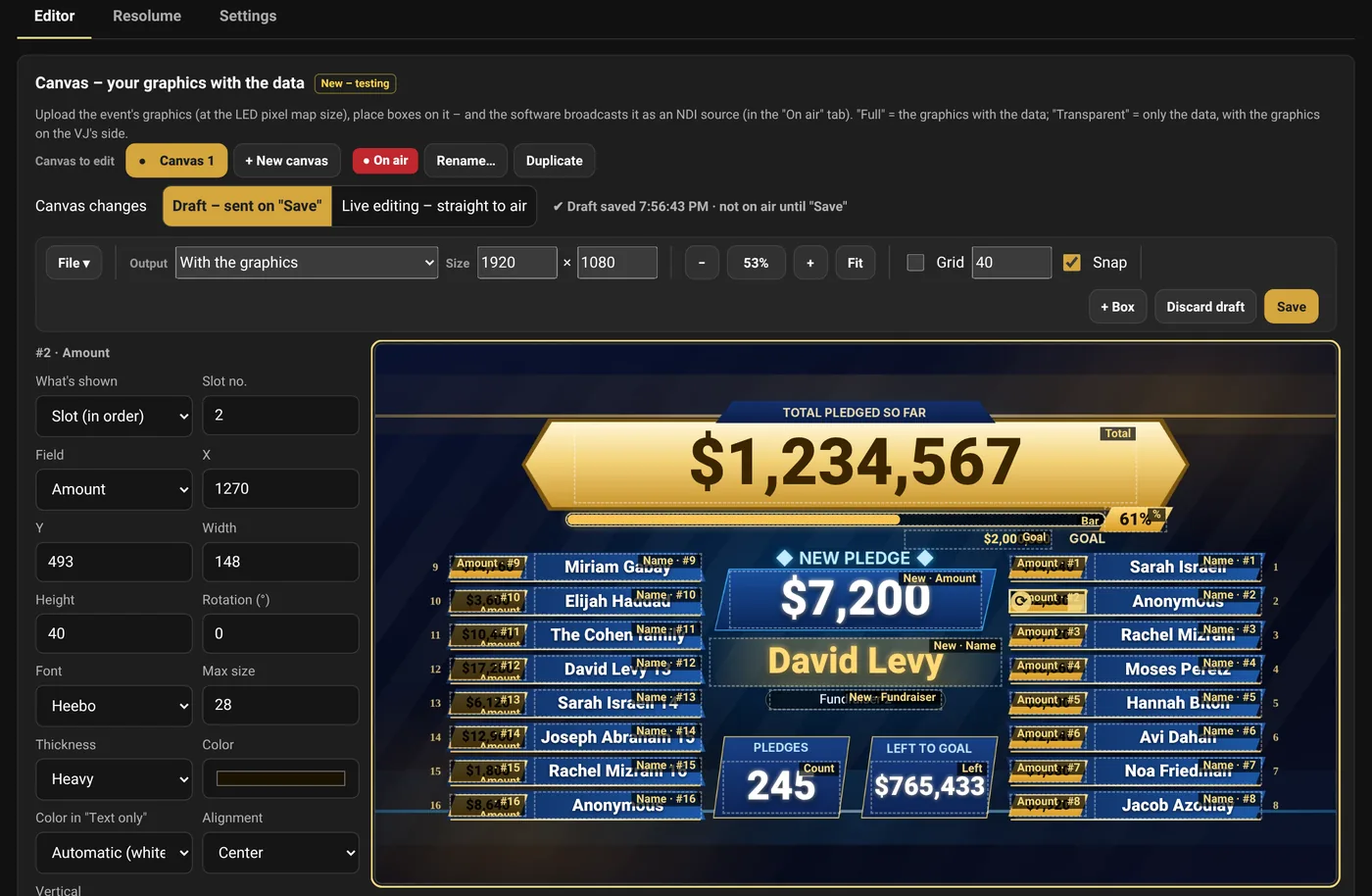
- LED screen → Editor. If the event has several canvases, choose the one you're working on in the "Canvas to edit" row.
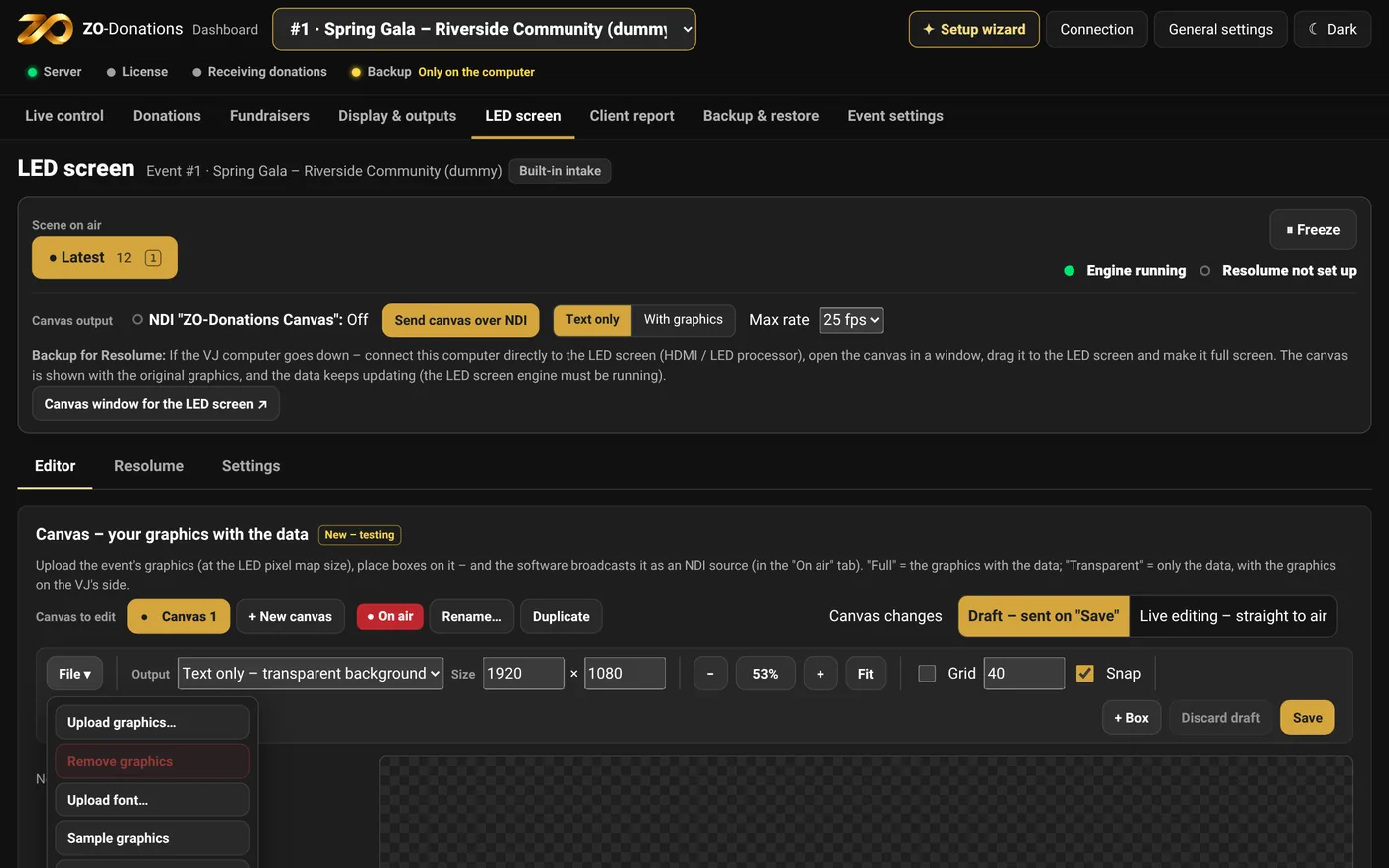
- File ▾: upload graphics (PNG, JPG or WebP at the screen's size), fonts, or "Sample graphics" with 41 ready-made boxes. "Remove graphics" deletes the graphics file (the sample graphics too), after you confirm; the boxes and the size stay.
- "+ Box" and choose the content: total, progress bar, goal, percent, new pledge (name, amount, fundraiser), count, left to goal, tier, or tile number N (name or amount).
- For each box: font, size, color, alignment, shadow, glow and animation.
- Canvas size: width × height, with the width always on the left (for example 1920 × 1080).
- "Save". In "Draft – sent on "Save"" mode, changes go live only when you save. In "Live editing – straight to air" mode, every change goes live within a second.
The draft saves itself
About a second after every change, the draft is saved on the computer: "✔ Draft saved … · not on air until "Save"". It's also saved when you close the window or move to another area, and when you open the editor again you see "Saved draft loaded". What's on air doesn't change until "Save". "Discard draft" (after you confirm) throws the draft away and goes back to the canvas on air.
Zoom
In the editor toolbar: − / percent / + / "Fit". Clicking the percent goes back to 100%. You can also use Cmd+scroll wheel or pinch on the trackpad, and Cmd+ / Cmd− / Cmd+0. When zoomed in beyond the window, the frame scrolls, and dragging, resizing and snapping stay accurate at any zoom. Switching to another event resets the zoom to "Fit".
Keyboard shortcuts in the editor
- Delete: delete · Cmd+Z / Shift+Cmd+Z: undo and redo · Cmd+D: duplicate · Alt+drag: copy.
- Cmd+C / Cmd+X / Cmd+V: copy, cut and paste boxes. Each paste is offset by 20 pixels, and you can also paste into another event in the same browser. The shortcuts don't work inside a text field.
- Arrow keys: move by one pixel (with Alt: 10). Shift+Up or Down arrow: rotate by one degree.
- Shift- or Cmd-click, or drag: select several boxes. Cmd+A: select all. "Snap" shows guides.
- Duplicating a tile gives the copy the next number.
Output
- With the graphics: the source includes the graphics and the data.
- Text only: transparent background, for when the VJ puts the graphics underneath in Resolume.
- In Resolume: Sources → NDI → "ZO-Donations Canvas". For several screens, use one canvas the size of all of them, and split it in Advanced Output.
Several canvases per event
One event can have up to 12 canvases – for example graphics for the opening, for the fundraising itself and for the thank-you, or a separate canvas for a side screen. The "Canvas to edit" row has a button for each canvas (● marks the one on air), and next to them:
- "+ New canvas": an empty canvas, the size of the one on air.
- "Rename…" and "Duplicate" (a full copy, including the graphics and fonts).
- "Delete…" (after you confirm; not shown when there's only one canvas).
- "Put on air": the canvas in the editor goes on air.
Everything else in the editor – boxes, graphics, fonts, zoom, draft and live editing – applies to the canvas in the editor. Switching between canvases keeps the previous one's draft.
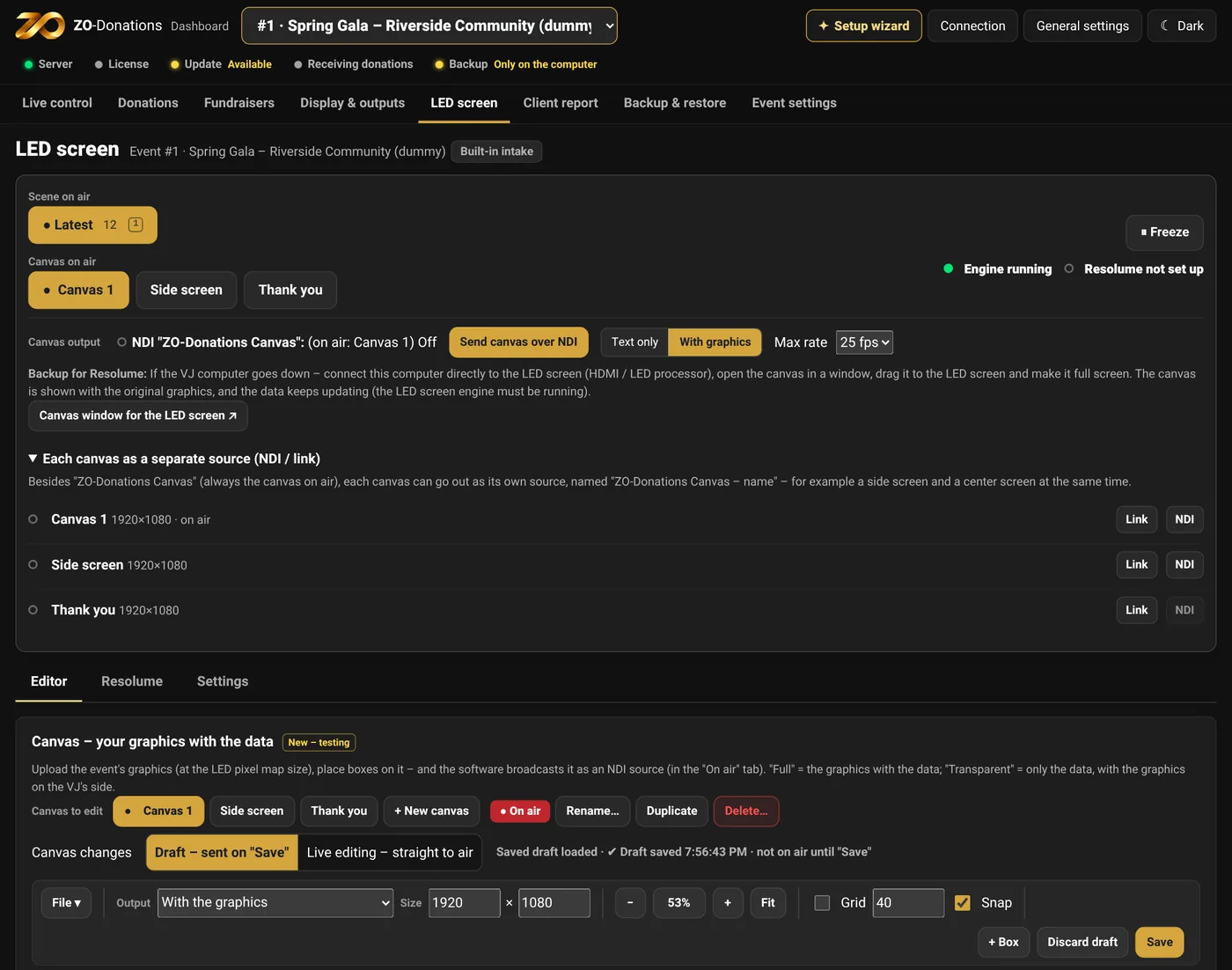
Switching on air: when there's more than one canvas, the LED screen's top bar shows a "Canvas on air" row, with a button for each canvas. "ZO-Donations Canvas" and the canvas window switch to the chosen canvas within about a second, without stopping the sender. Only when the new canvas has a different size or a different background (text only versus with the graphics) does the sender restart on its own, with a short dropout in Resolume.
A separate source for each canvas: under "Each canvas as a separate source (NDI / link)", each canvas has a fixed "Link" and "NDI": an extra source named "ZO-Donations Canvas – canvas name", which always shows that same canvas, even when you switch what's on air. That way you can run, for example, a side screen and a center screen at the same time. Renaming or resizing restarts the source with the new name or size, and deleting a canvas stops its source.
Writing to clips in Resolume, and the graphics command from Companion, work on the canvas on air.
VJ computer down? Canvas window for the LED screen
If the Resolume computer goes down in the middle of the event, carry on from the fundraising computer:
- Connect the fundraising computer directly to the LED screen (HDMI or the LED processor).
- LED screen → Canvas output → "Canvas window for the LED screen ↗".
- Drag the window to the LED screen and make it full screen.
The window always shows the original graphics with the data, on a black background, even if the output is set to "Text only". The LED screen engine needs to be running. The window is available from version 1.0.1.
Preparing in the demo event and copying to the real event
Build the canvas in the demo event and test it with the donation simulation. When you're done: File ▾ → "Copy canvas to event…". Copying brings over the graphics, fonts, boxes, size and output mode. In a target event with one canvas it replaces that canvas; in an event with several canvases it's added as a new canvas.
Scenes and freeze
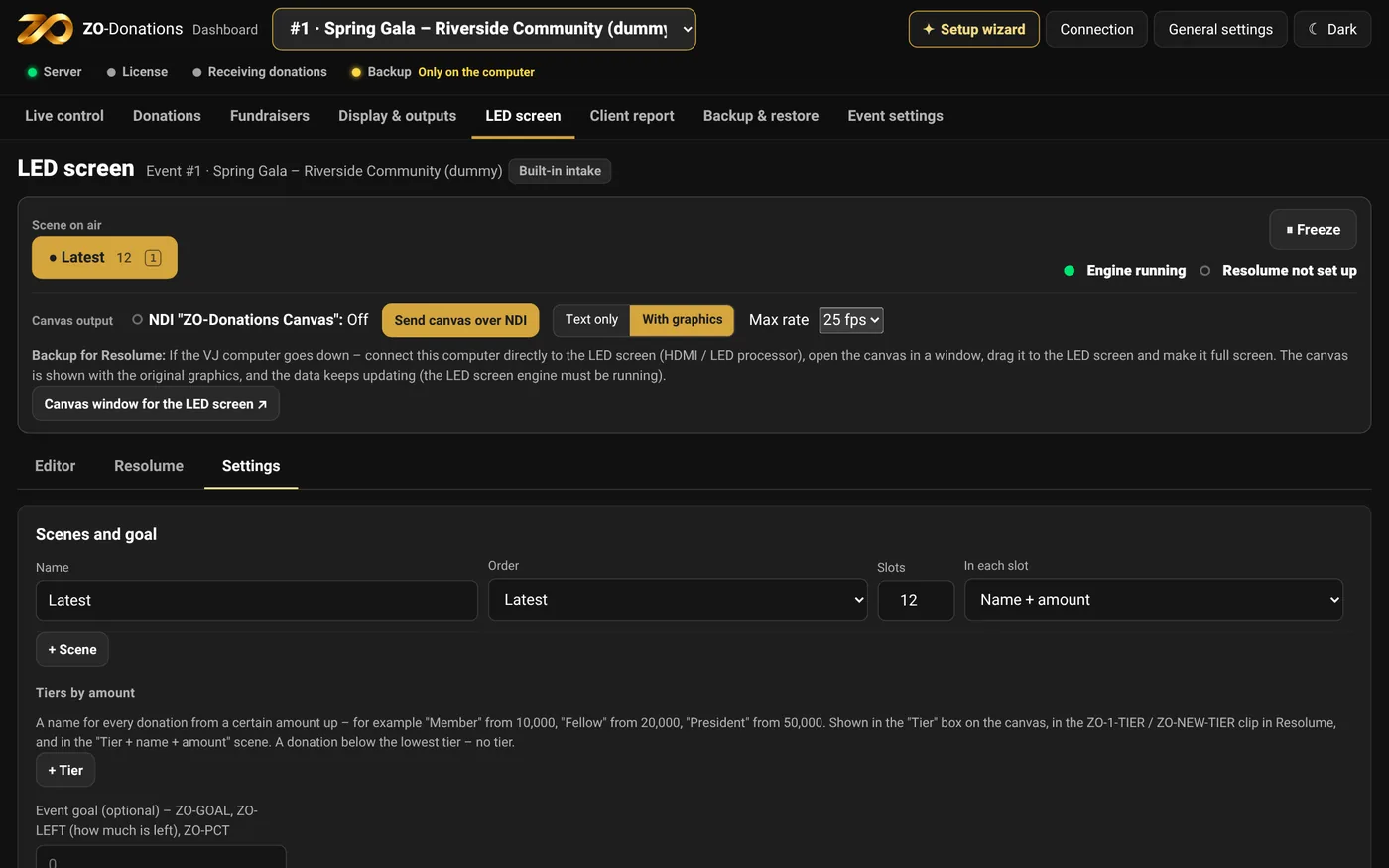
- Scenes: for example "Latest" (the new donation goes into tile 1 and the rest shift), "Largest" (top N), or "Tier + name + amount". Switch from the bar or with keys 1–9.
- Freeze: what's on screen stays until "Release". Donations that come in meanwhile wait in the queue. Freeze happens on the computer itself, so it works even when Resolume isn't connected.
- Tiers: a name for every donation from a certain amount up, for example "Friend" from $10,000 and "President" from $50,000. Shown in the "Tier" box.
Resolume: writing to clips
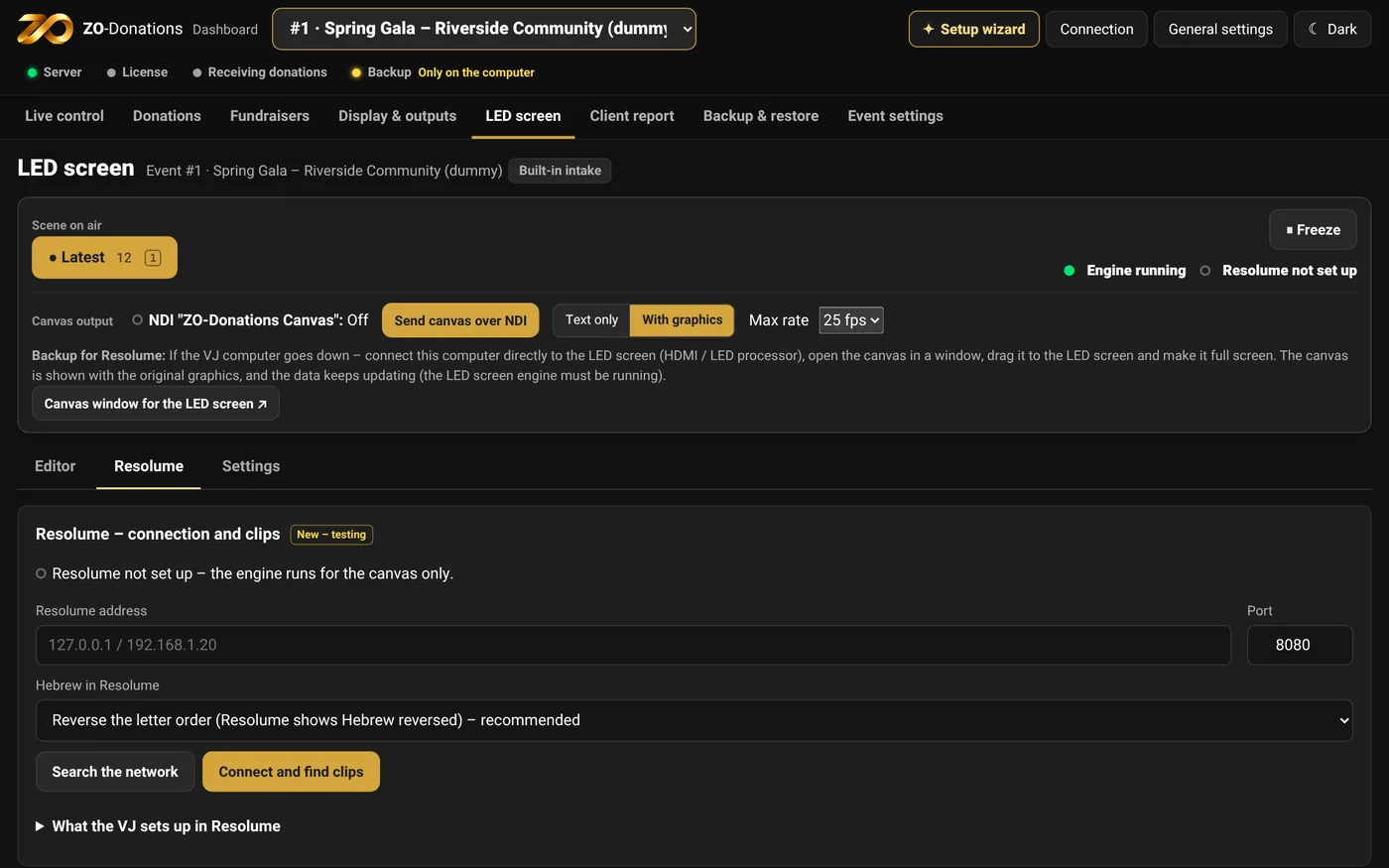
- In Resolume: Preferences → Webserver → Enable. If Resolume is on another computer, change Listen Address from 127.0.0.1 to 0.0.0.0 (port: 8080).
- The VJ names their text clips
ZO-1,ZO-2… ,ZO-TOTAL,ZO-COUNT,ZO-GOAL. - In LED screen → Resolume: the Resolume computer's address (or 127.0.0.1 if it's the same computer) and port, then "Connect and find clips". The app finds the clips by name and shows what's missing.
- "Write test" writes a number in each tile, so you can check on screen that the mapping is right.
The app writes only text to the mapped clips and doesn't change anything else in Resolume. Animation and transitions are done in Resolume. Listen Address 0.0.0.0 opens Resolume control to anyone on the network, so use a closed production network rather than the venue's Wi-Fi.
Hebrew text: Resolume draws text left to right, so the app sends Hebrew in the order that looks right on screen. You can turn this off for each event.