The wizard takes you step by step – from setting up the event and the license to the canvas showing in Resolume or on the screen in the hall. It also suits someone running the app for the first time, with no technical knowledge. Everything in the wizard also exists in the dashboard's regular areas, and the wizard doesn't block them.
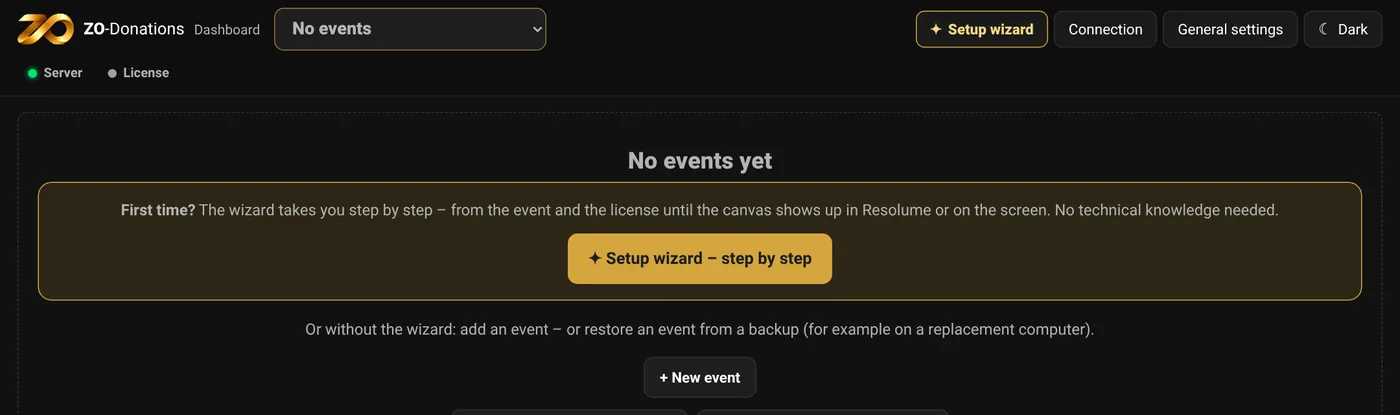
Opening and leaving
- On the empty dashboard: "✦ Setup wizard – step by step".
- At any time: "✦ Setup wizard" in the top bar. If you haven't finished, the button reads "Continue wizard (5/8)" and takes you back to the step where you stopped – even after a reload.
- To leave: ✕ or Esc, at any step. Your progress is saved for each event.
How it works
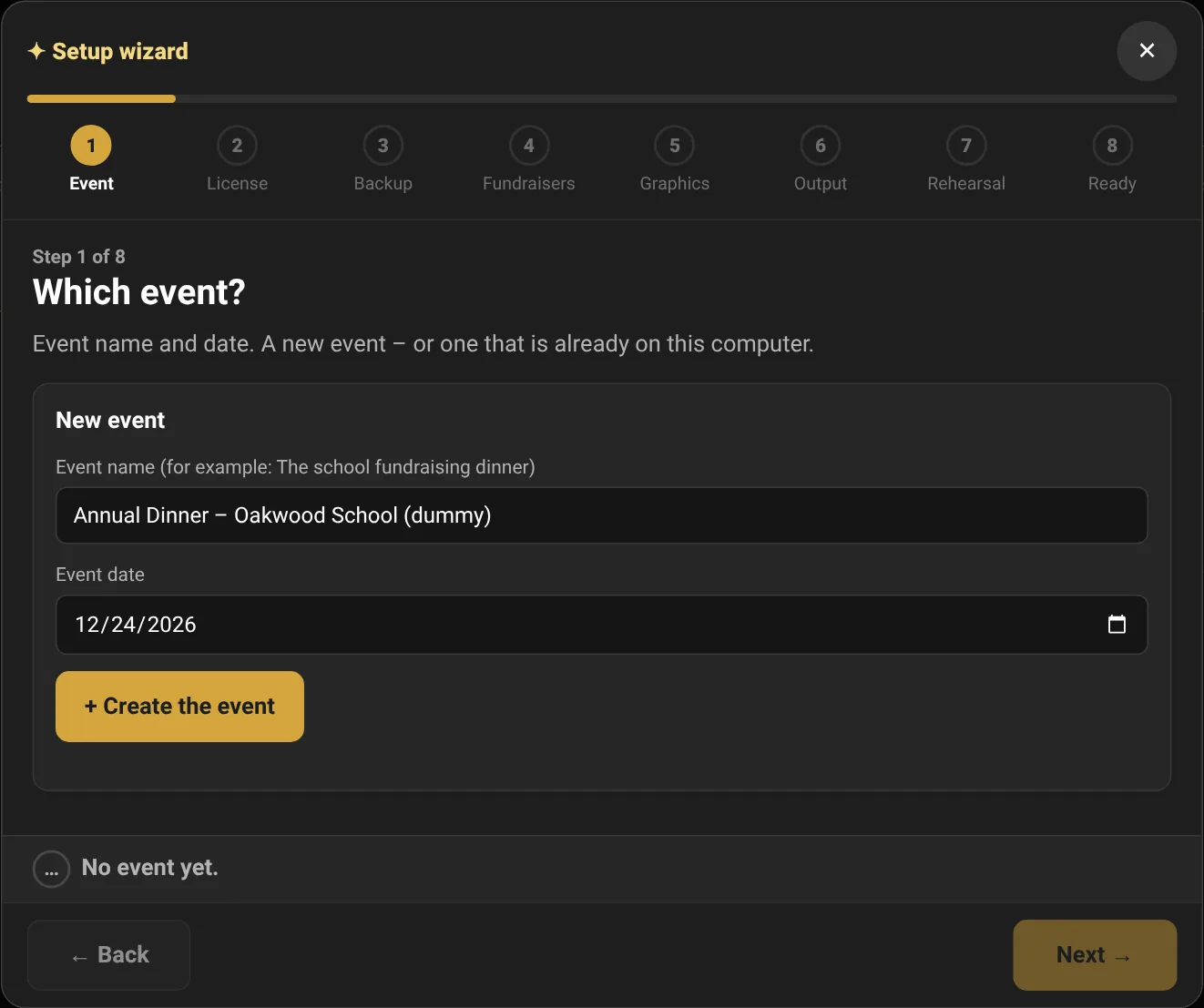
One task per screen, with large buttons. At the top of the window is the row of eight steps: ✔ next to every step that's done, and clicking a step goes to it. "Next →" opens only after a ✔: the app checks against the real state every few seconds, and the status line above the buttons says what's missing.
The steps
- Event: a name and date for a new event, or choose an event that's already on the computer.
- License: checks that the event has an active license. If not, "I have an activation code – to the license screen" or "Free trial (30 days)" opens the license screen with the event and date already filled in, and from there "Back to the setup wizard →". You can also choose a demo event. See License.
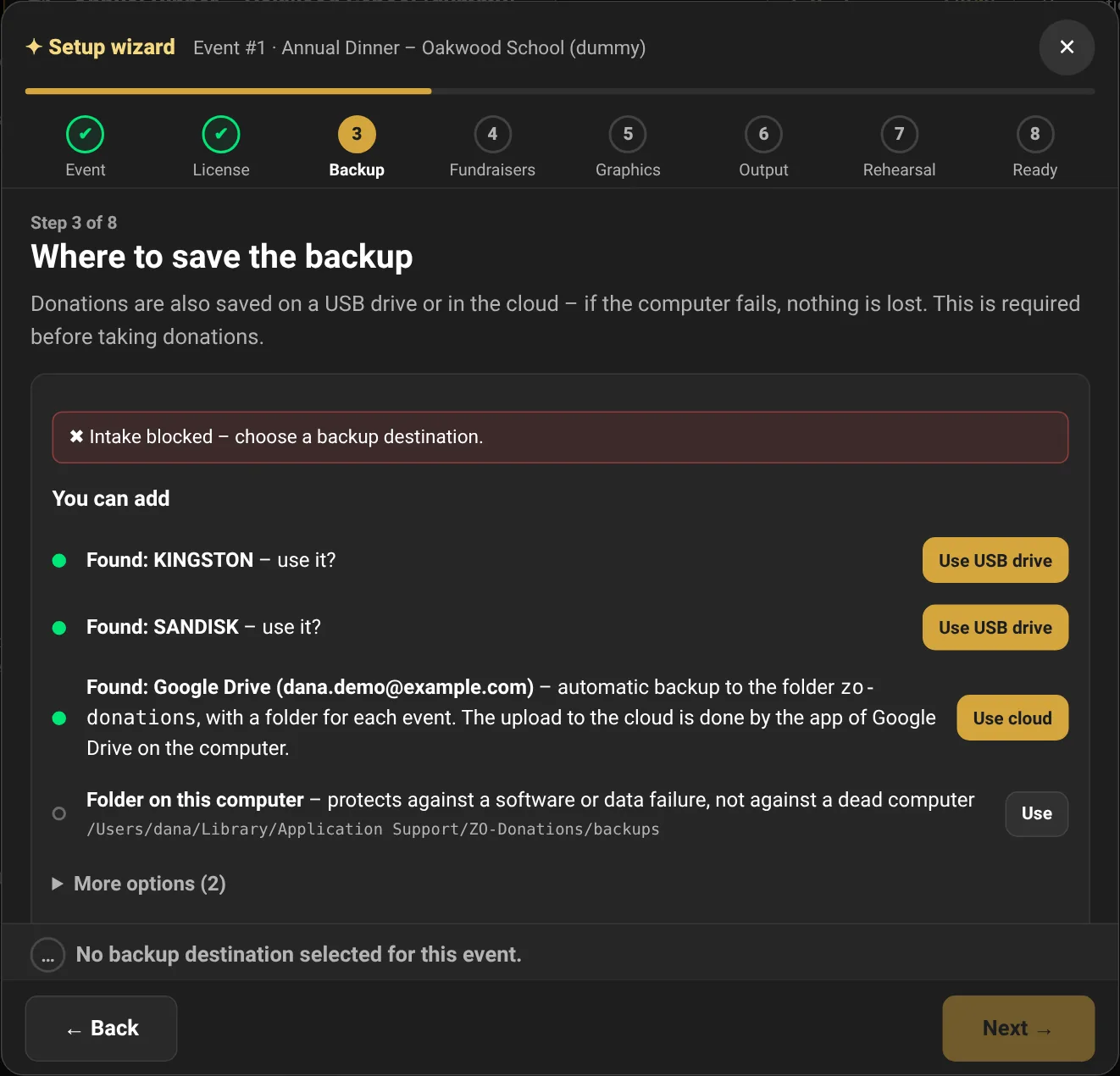
- Backup: the same list of destinations as in Backup & restore – a USB drive, the cloud or a folder on the computer. This is required before taking donations.
- Fundraisers: add names, and for each fundraiser "QR for the phone" or "Copy link". Rehearsal mode turns on by itself, and you send a test donation from your phone (name "Test", amount 1). A ✔ appears when it arrives, and it isn't counted.
- Graphics: "Sample graphics (ready made)", or "Upload your graphics…" followed by "Place the boxes automatically" (the sample boxes, fitted to the size of your graphics), or open the canvas editor. You can skip this step.
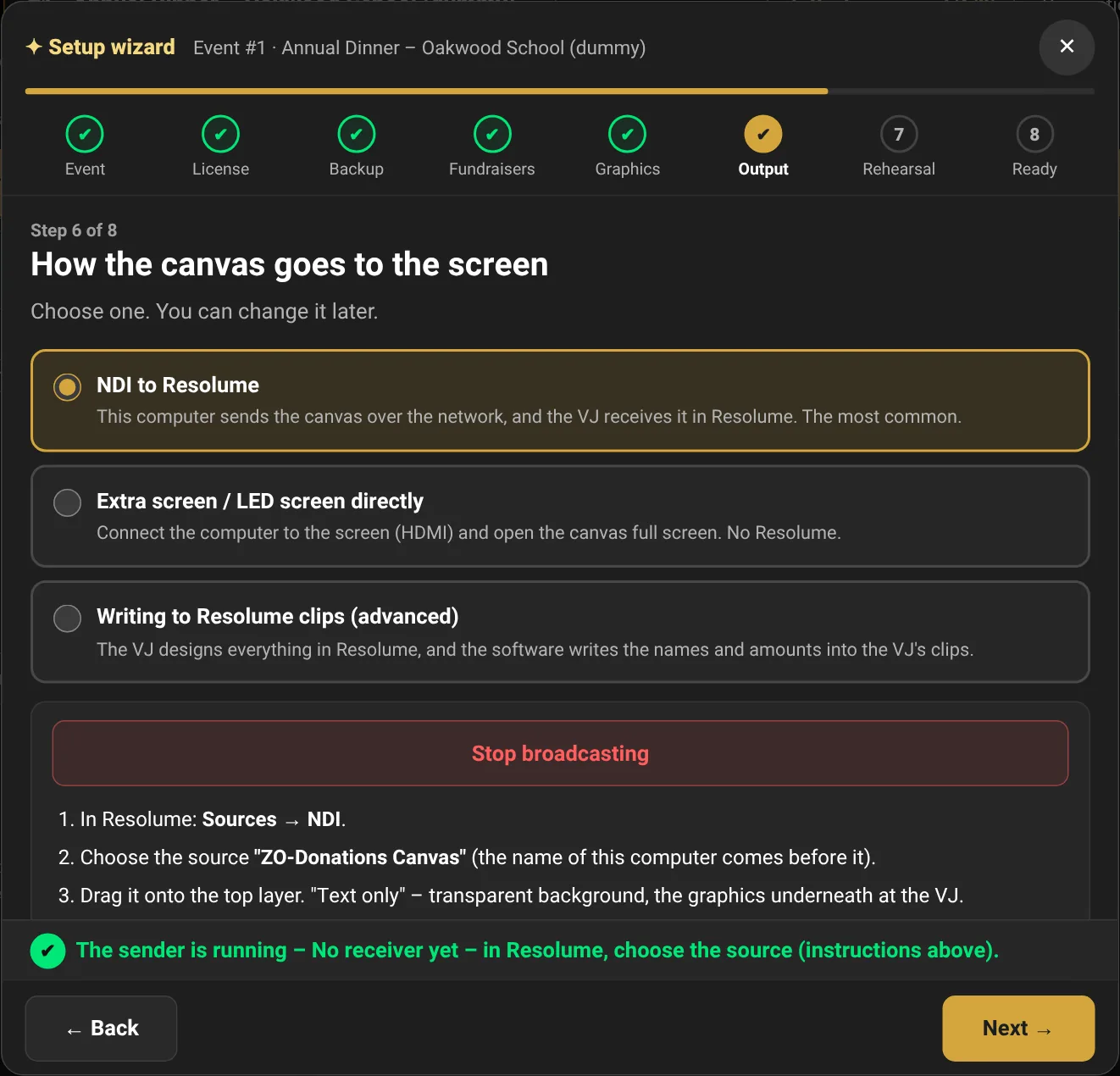
- Output: one of three. NDI to Resolume: the wizard starts "ZO-Donations Canvas", and a ✔ appears when the sender is running, with the number of receivers. Extra screen / LED screen directly: "Open the canvas window ↗", drag it to the extended display and make it full screen (⌃⌘F), then check "I can see the canvas on the second screen". Writing to Resolume clips (advanced): address, connect and find clips, and a test write.
- Rehearsal: donation simulation, with a live view of the canvas inside the wizard. Check "I saw the names and amounts change on the screen", then "Finish rehearsal – clear and turn rehearsal mode off".
- Ready: a summary – a green line for every step that's ready, and a red line with "Fix" for anything missing. At the end, "✔ Ready for the event".
Good to know
- The date in the wizard is passed to the license screen. It doesn't set the event times in Event settings.
- The wizard works with a built-in intake event. For a Google Sheets event, it asks for a built-in intake event.
- "Finish rehearsal" deletes only the rehearsal donations and turns rehearsal mode off, so from then on every donation is real.