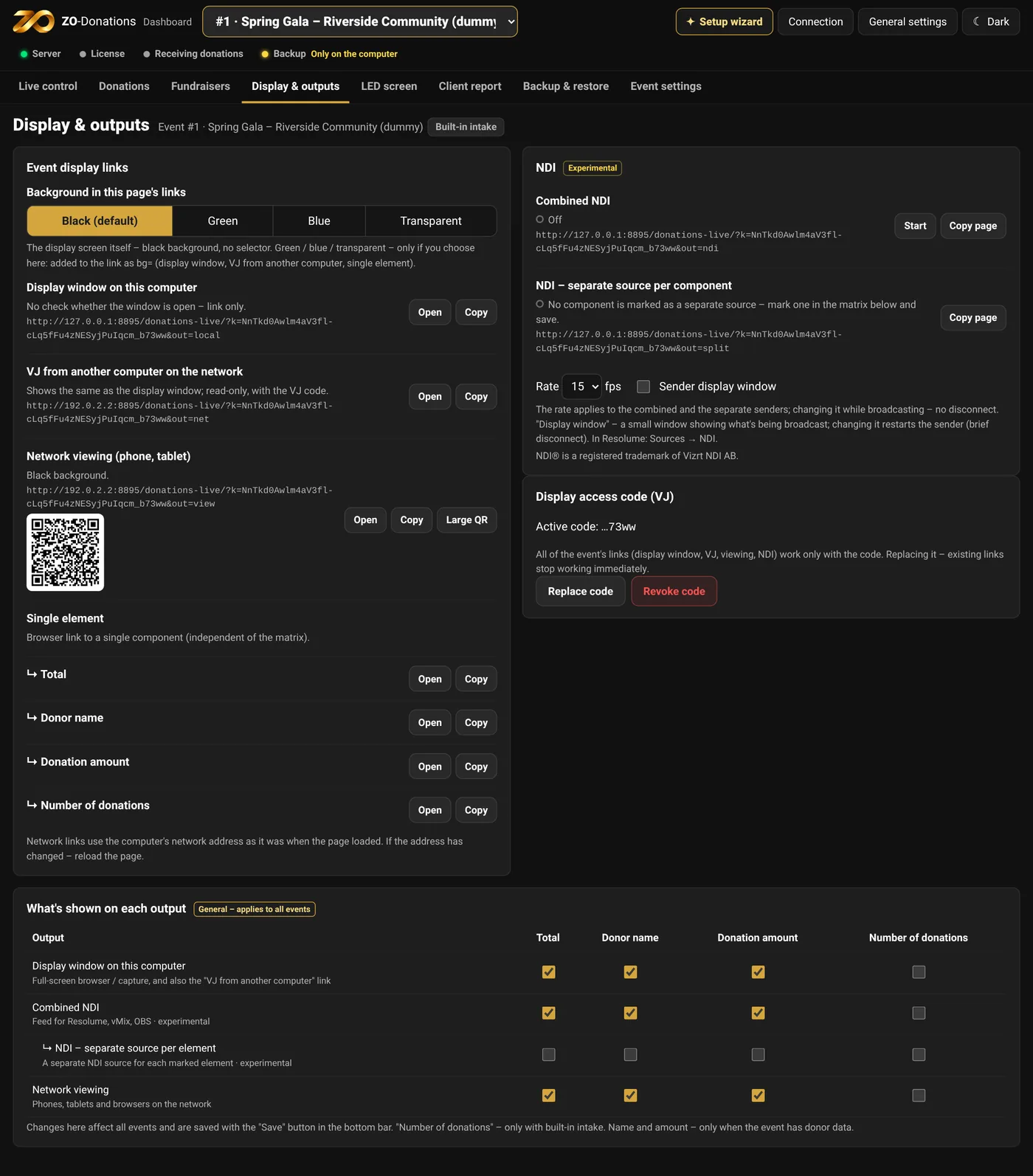
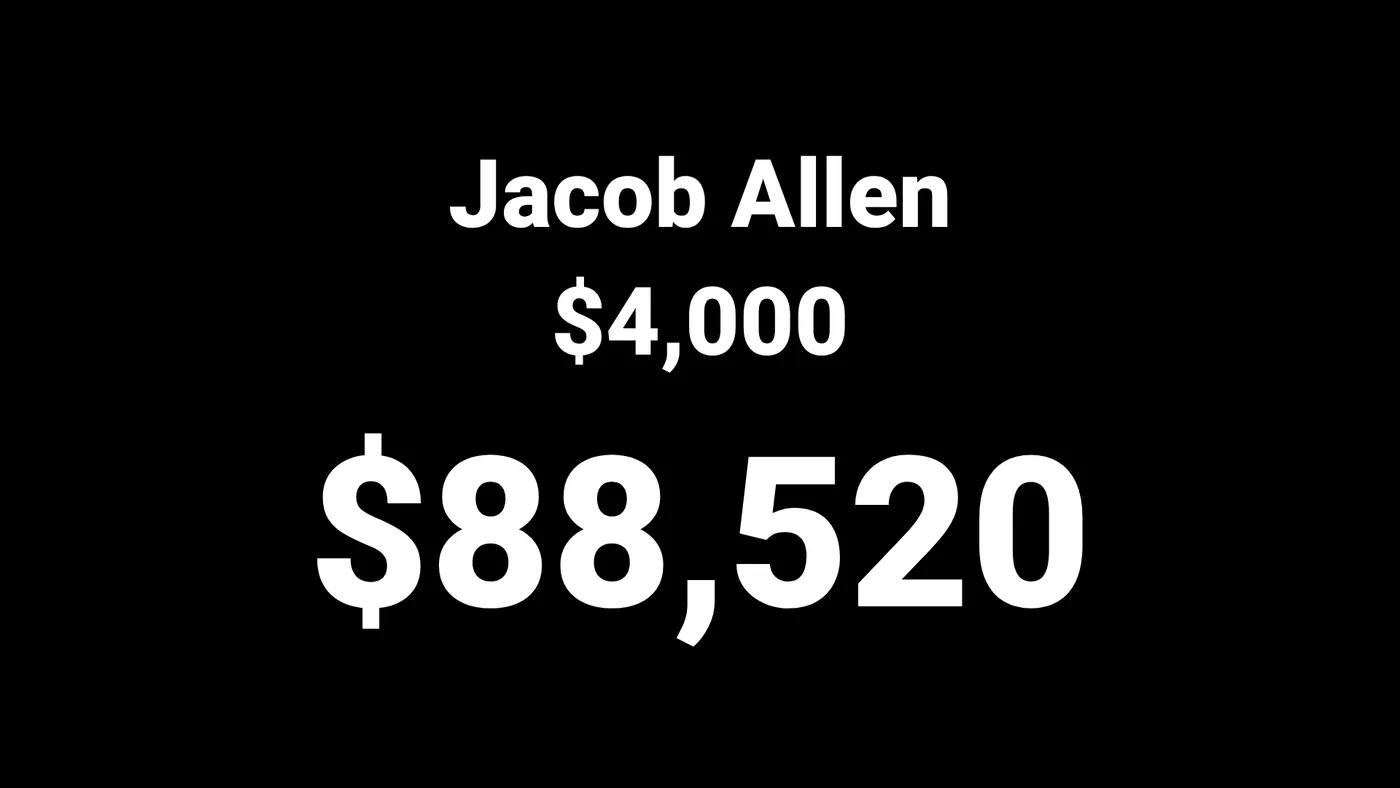
There are several ways to get the data onto a screen: a display window on the computer, a link for the VJ's computer, and NDI output. All the links are in the Display & outputs area.
The outputs
- Display window
- Opens on this computer. Drag it to the second screen and make it full screen.
- VJ from another computer
- A link with an access code, for the VJ's computer on the same network. It can be opened as a source in Resolume.
- Network viewing
- A link and QR code for viewing from a phone or another computer.
- Single element
- A link that shows only the total, only the donor name, only the donation amount or only the number of donations. Useful when each element sits in a different place on the screen.
Background
The basic display screen has a black background, which works with Luma Key or Alpha in Resolume. If you need a different background, choose green, blue or transparent under "Link background", and the links update.
The display access code
The links include a code. "Change code" cancels all previous links and creates new ones. It's a good idea to change it between events.
The outputs matrix
The table at the bottom sets what each output shows: total, donor name, donation amount and number of donations. The matrix applies to all events.
NDI (experimental)
- Combined: one source with the whole display.
- Separate sources: one source per element.
- Canvas: the LED screen graphics with the data. When an event has several canvases, "ZO-Donations Canvas" always shows the canvas on air, and you can add a separate source for each canvas. See LED screen and canvas.
Start and stop it here or in the status bar, and change the frame rate here. The status shows whether the sender is running and how many receivers are connected. In Resolume: Sources → NDI → "ZO-Donations".
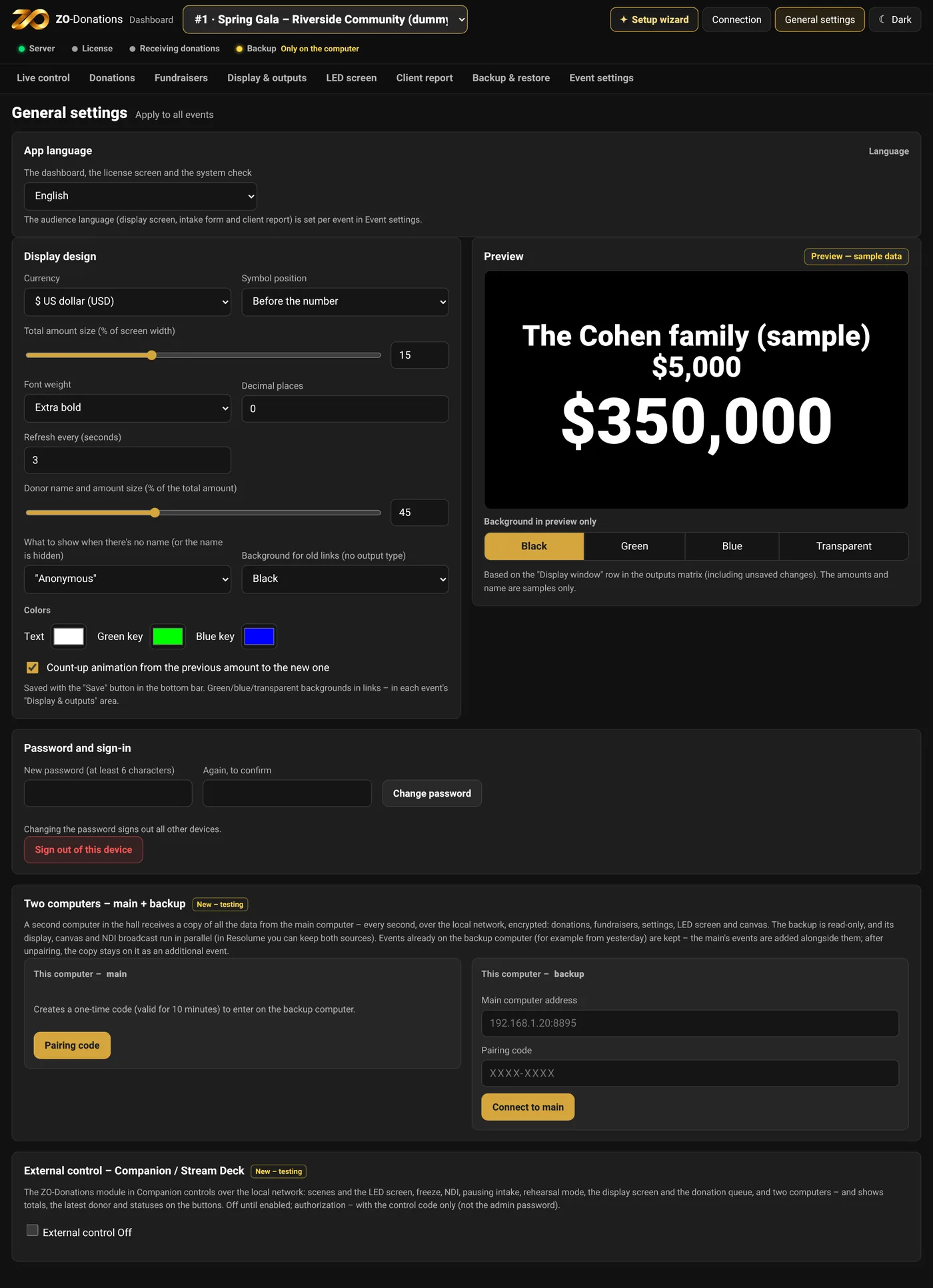
Display design
In General settings → Display design: currency and its position, size and weight, decimal places, colors, animation, the "Anonymous" text and the size of the donor lines. There's a preview with sample data. The currency here is the default: each event can have its own currency and audience language, in Event settings.