A license is for one event. It unlocks intake from phones for that event, during the event's time window. The demo event doesn't need a license. In the setup wizard, step 2 checks that the event has a license, and leads to the license screen with the event and date already filled in.
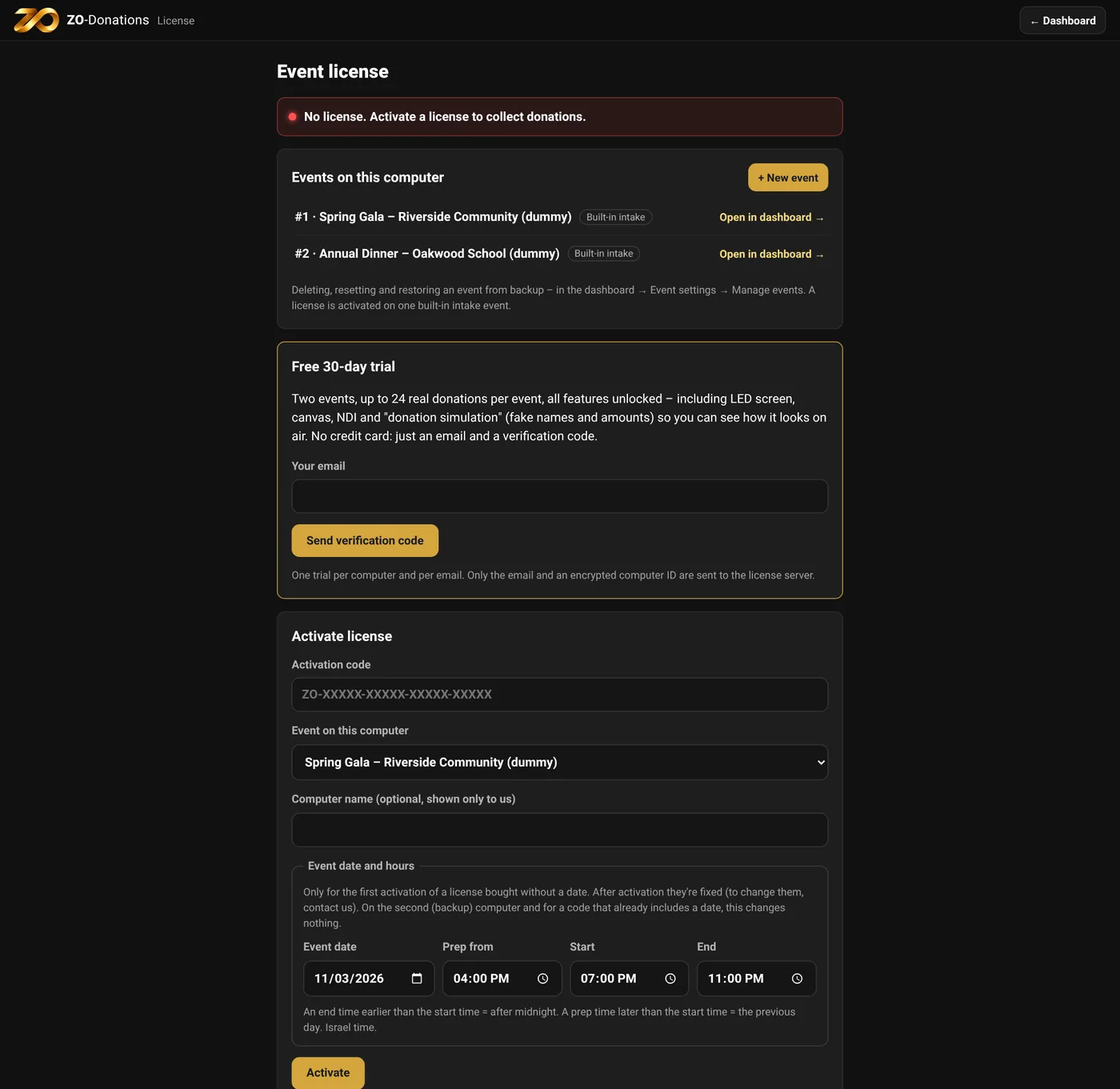
Activating a purchased license
- At the top of the dashboard: Connection → License.
- Paste the activation code (in the form
ZO-XXXXX-XXXXX-XXXXX-XXXXX). - Choose the event on this computer.
- For a license bought in the store without a date, choose the event date, prep time, start time and end time. After activation they're fixed; to change them, contact us.
- "Activate". Activation needs internet once. After that the license works without internet too, until the end of the window.
30-day free trial
- In the "30-day free trial" box, enter an email address and click "Send verification code".
- You get a 6-digit code by email (valid for 15 minutes); type it in.
- You get two event licenses for 30 days. The first is activated right away on the selected event, and the second is shown on screen and sent by email.
During the trial: up to 24 real donations per event. Rehearsal mode and donation simulation don't count toward the limit. One trial per email and per computer.
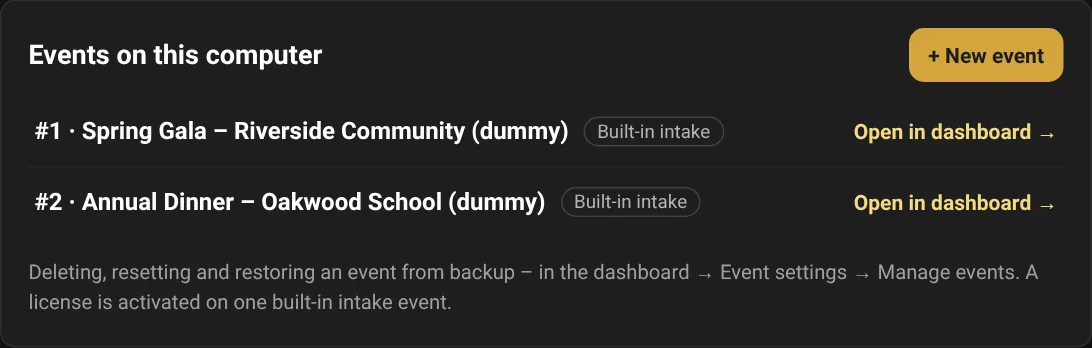
Events on this computer
At the top of the license screen you see all the events on the computer: number, name and type, a "Licensed on this computer" tag on the event that has the license, and an "Open in dashboard →" link for each event. "+ New event" opens the dashboard with the new-event window. Deleting, resetting and restoring events is done in Event settings → Manage events.
Two computers
Each license covers two computers: main and backup. Activate the same code on both. The screen shows "This computer: 1 of 2". See Two computers.
What you see during the event
- The "License" chip in the status bar: green when the license is active, with a countdown to the end of the window.
- "The event hasn't opened yet": before prep time, intake is closed.
- An alert 30 and 10 minutes before intake closes.
- After the end of the window: intake closes, but reports and export stay available.
More actions on the license screen
- "Check for license update": pulls changes from the server, such as an extension.
- "Import license file…": for a computer without internet, with a file you got from us.
- "Release the license from this computer": frees the slot so you can activate on another computer.
Only the code, an encrypted computer ID and the event name you chose are sent to the license server. No donor names and no event data.